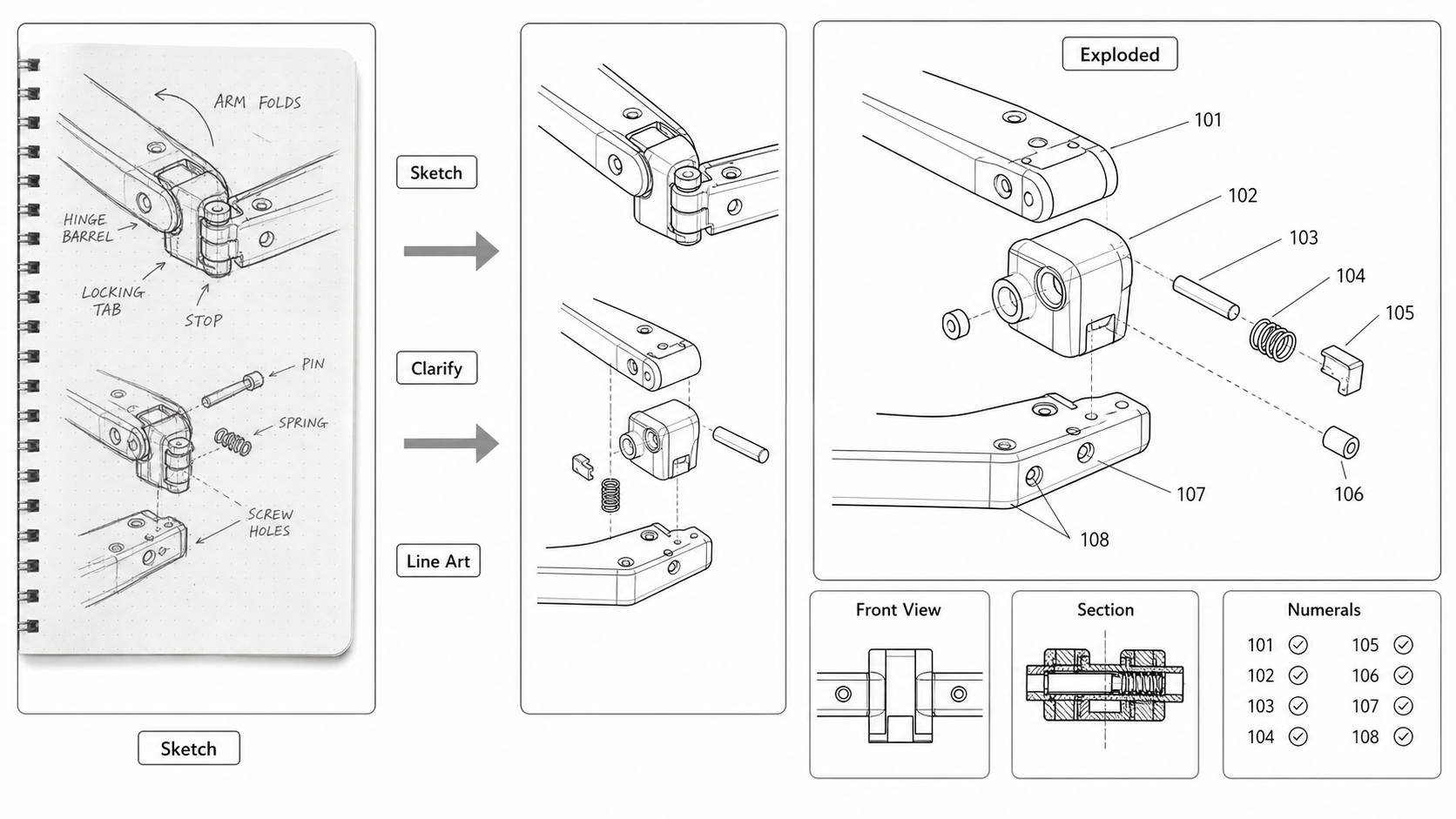
Sketch to Patent Figure: Turning Inventor Notes Into Filing-Ready Drawings
Convert hand-drawn inventor sketches into patent figures: scanning tips, AI line-art extraction, when to redraw, and what gets lost between a napkin and a USPTO submission.
TL;DR: Scan or photograph the inventor sketch flat and high-contrast, run AI line-art extraction for clean strokes and proportions, then hand-finish hidden lines, hatching, and reference numerals to survive 37 CFR 1.84. Keep the original sketch versioned alongside the SVG/TIFF outputs — when claims change, regenerate from the sketch, not from the AI output.
Inventor sketches are the most underused source for patent figures. They capture shape, proportion, and structural intent better than any prompt, and they exist before anyone has thought about what views the application needs. The work in this pipeline is turning that raw structural intent into figures that survive 37 CFR 1.84 — without losing what made the sketch useful in the first place.
Start with a clean sketch and let AI handle the line work. Open the sketch-to-patent-drawing generator.
What a Patent-Ready Sketch Looks Like
Most inventor sketches are not patent-ready. The fix is rarely in the AI; it is in the sketch. Five attributes that make a sketch convertible:
- Closed contours. Each shape boundary forms a continuous loop. AI line-art extractors break at every gap, so a contour with three small gaps becomes three separate line segments.
- Single line weight per type. Use one pen for outlines, optionally a thinner pen for hidden lines, and a marker for emphasis. Mixing line weights randomly produces noisy AI output.
- Minimal cross-hatching. Shading via dense lines confuses both AI and patent rules. If shading is needed (rare in utility patents), use sparse parallel lines on small areas only.
- Numbered parts with leaders, drawn directly on the sketch. A numeral with a leader is easier for AI to preserve than a numeral floating somewhere on the page. The reference numeral table can be reconciled later, but the figure needs to know where each numeral attaches.
- One view per page. Multiple views on one page can be split by AI but tend to share contours and confuse the model. A front view on one page, a side view on a second page, a perspective on a third produces cleaner output than all three on the same sheet.
A sketch that has these five attributes converts in one AI pass. A sketch missing several of them often produces output that needs manual cleanup or a redraw.
Capture: Scan vs Photograph
Scanning produces better source material than photographing. The difference matters because everything downstream — contrast, line clarity, contour closure — depends on the capture step.
Scanning
Flatbed scanner, 600 DPI, grayscale. Save as PNG or TIFF (not JPEG — JPEG compression artifacts create false contours that AI extractors interpret as lines).
Settings that produce the best AI input:
- 600 DPI minimum, 1200 DPI for sketches with fine detail
- Grayscale mode, not color (color introduces noise; the sketch is usually black-on-white anyway)
- No auto-enhancement (auto-contrast can erase faint pencil lines or over-darken margins)
- Crop to the sketch boundary after scanning, not before
Photographing
Phone camera in good ambient light. The common failures and their fixes:
| Failure | Cause | Fix |
|---|---|---|
| Shadow across the sketch | Single light source | Diffuse the light or photograph in even daylight |
| Perspective distortion | Camera not perpendicular | Use a tripod or hold the phone flat above the page |
| Reflections from glossy paper | Glare | Move the light, or use matte paper for sketches |
| Color cast | White balance off | Set white balance to daylight, or shoot in RAW and convert |
| Out of focus | Camera too close | Step back, use 2x zoom, ensure focus is on the sketch plane |
After photographing, run a perspective correction in any photo editor — most provide a four-point keystone tool. Crop tight to the sketch, then convert to grayscale.
AI Line-Art Extraction
The AI step takes the cleaned scan and produces patent-style line art: contours preserved, shading removed, cross-hatching simplified, paper texture stripped.
What AI does well
- Contour preservation. A clean sketch produces clean AI line art. Closed loops stay closed, intersections stay clean.
- Paper noise removal. Background paper grain, faint guide lines, and the slight tan of aged paper get cleaned automatically.
- Cross-hatching simplification. Dense shading turns into a smooth surface or a sparse hatch pattern — closer to patent convention.
- View organization. Multiple views on one sketch can be split into separate output frames if labeled clearly.
What AI fails at
- Hidden parts. AI does not know what is behind a surface. A sketch showing only the housing exterior cannot produce a cross-section.
- Exact proportions. AI line art may shift proportions by a few percent. If the invention claims a specific ratio (length-to-width, gap-to-radius), verify the AI output against the source.
- Reference numeral placement. AI may move numerals to keep the figure clean, or invent numerals that the sketch did not show. Treat numerals as advisory output, reconcile with the spec.
- Mechanism direction. A sketch showing a hinge does not always make the open/close axis clear. AI may produce an exploded view that flies parts apart in the wrong direction.
The handoff
Treat the AI output as a first draft. Run two reviews:
- Structural review by the inventor or engineer: does each part appear in the right place? Are hidden mechanisms shown correctly? Is the perspective axis right?
- Formalities review by the filer: margins inside the sight, line weight uniform, no extraneous matter, reference numerals at correct height. See how to check patent drawing compliance for the full review.
When to Redraw Entirely
Some sketches are not worth converting. Redraw from scratch in PatentFig AI or by hand when:
- The sketch is faint, smudged, or partially erased
- The sketch shows multiple alternate embodiments overlaid on the same page
- The sketch was drawn before the claim language existed and shows features that are no longer claimed
- The sketch is the wrong view (perspective when you need orthographic, top when you need cross-section)
A redraw is rarely worse than a heavily edited AI output. The breakpoint: if the cleanup steps after AI extraction take longer than 10 minutes per view, the next view is faster to redraw.
Multiple Embodiments on One Sketch
Inventors often sketch alternate embodiments on the same page — a hinge mechanism with three variations drawn side by side, or a device shown with and without a removable cover. This is useful for invention disclosure but confuses both AI and reviewers.
The fix: split the embodiments into separate figures before AI extraction. In a photo editor or scanner software, crop each embodiment into its own image. Label each as FIG. 1A, FIG. 1B, FIG. 1C, or as separate figures depending on whether the embodiments share enough geometry to be variants of one figure.
Reference Numerals in Sketches
The cleanest pattern: the inventor draws sketches without numerals, the patent engineer adds numerals after the claim language is drafted, then AI extraction preserves both. This separates invention drafting from disclosure drafting.
The messy pattern: the inventor draws sketches with hand-written numerals that do not match the eventual claim numbering. AI preserves the wrong numerals, and the cleanup step has to remove them. This is the most common failure mode in sketch-to-figure pipelines.
If the sketch already has numerals and the spec uses different ones, the safest move is to:
- Extract line art via AI with numerals preserved
- Remove all numerals in vector cleanup (Inkscape: select text, delete)
- Add new numerals from the spec's reference table
- Verify each numeral's leader ends on the correct component
Hand Sketch to Patent Figure: A Worked Example
A foldable bracket with one hinge, three views needed (front, side, cross-section through the hinge).
Step 1: sketch each view on a separate page. Use a pen with consistent line weight. Number the parts with small circles next to leaders.
Step 2: scan at 600 DPI grayscale. Save as PNG.
Step 3: upload to the sketch-to-patent-drawing generator. One view at a time.
Step 4: review the AI output. Confirm contour preservation, leader correctness, and view orientation. If the cross-section is wrong (e.g., the hinge pin shows solid when it should show as a circle with the pin centered), redraw the cross-section by hand or via PatentFig AI with an explicit prompt about the section plane.
Step 5: load the AI output into Inkscape. Verify the sight rectangle, line weight, and reference numerals. Convert text to paths. Export as PDF.
Step 6: run Figure Checker on the final PDF. Confirm margins, DPI, color mode, sheet numbering.
The whole flow for three views takes about 30 minutes if the sketches are clean. The same set drawn from scratch in CAD would take 2-4 hours.
When Provisional Drawings Can Be Rougher
USPTO provisional patent applications do not require formal drawings. A clean scanned sketch with reference numerals is sufficient for a provisional filing under 37 CFR 1.53(c). The drawings need to be replaced with formal figures when the non-provisional is filed, but the provisional can carry the raw sketches if needed.
This matters when the priority date is urgent and the formal drawings are not ready. File the provisional with sketches, then run the sketch-to-figure pipeline for the non-provisional during the 12-month conversion window.
PCT and most other offices do not have a provisional equivalent. For those, the formal drawings need to be ready at filing.
The Sketch as the Editable Master
A common mistake: treat the AI line-art output as the master and discard the original sketch. The sketch contains the inventor's spatial intent; the AI output contains the model's interpretation. When the spec changes and the figure needs amendment, the sketch is the better source.
Keep both. Version the sketch alongside the SVG and TIFF outputs. When a claim amendment requires a new view, regenerate from the sketch rather than editing the AI output.
Next step: Open the generator and try this workflow with your own source material — or browse patent drawing examples for a starting point.
Author

Categories
More Posts
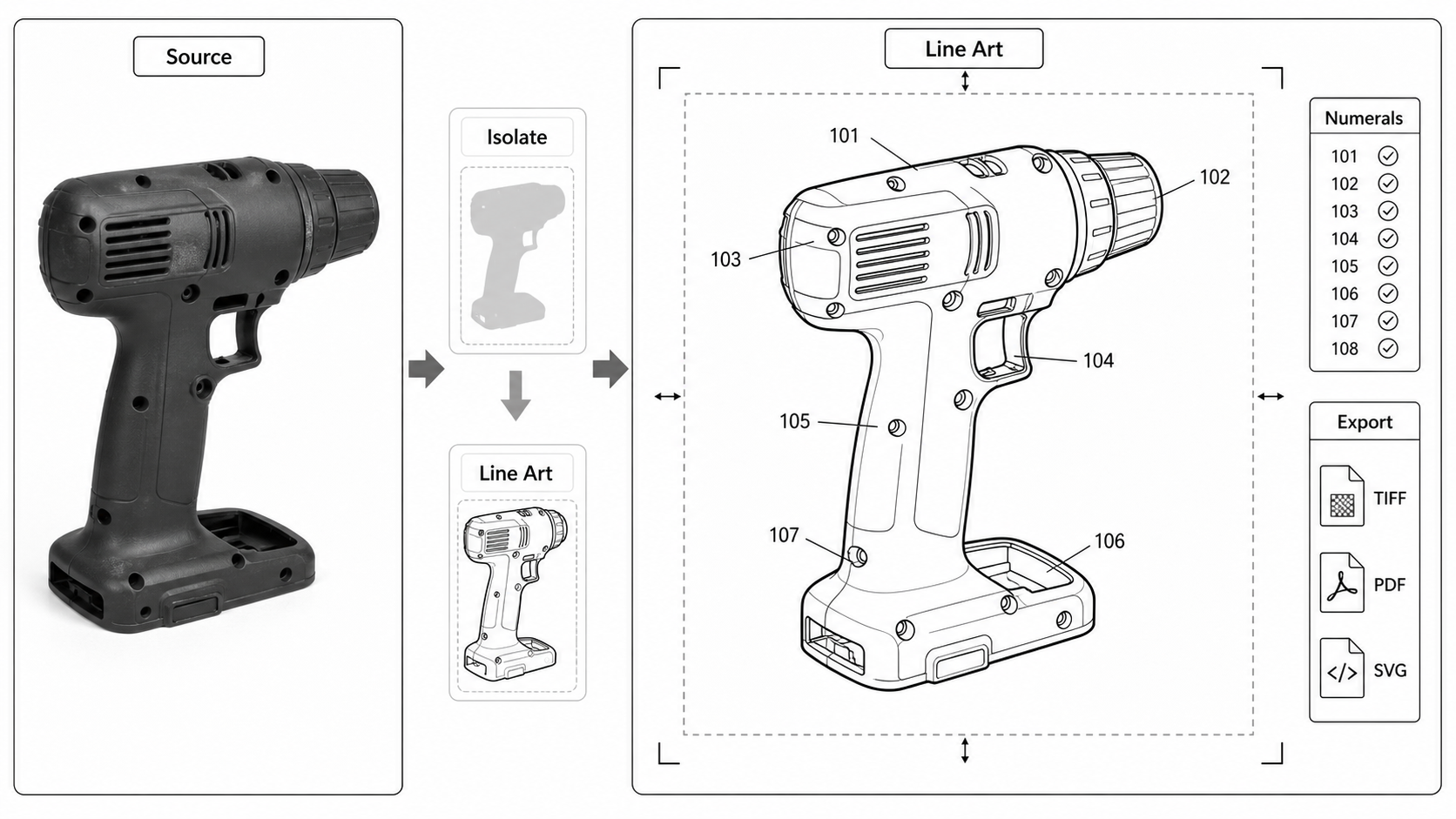
Photo to Patent Drawing AI: A Practical Workflow
Turn product photos into patent-style line art: photo prep, AI line extraction, what AI invents and what it loses, and the cleanup steps before filing.
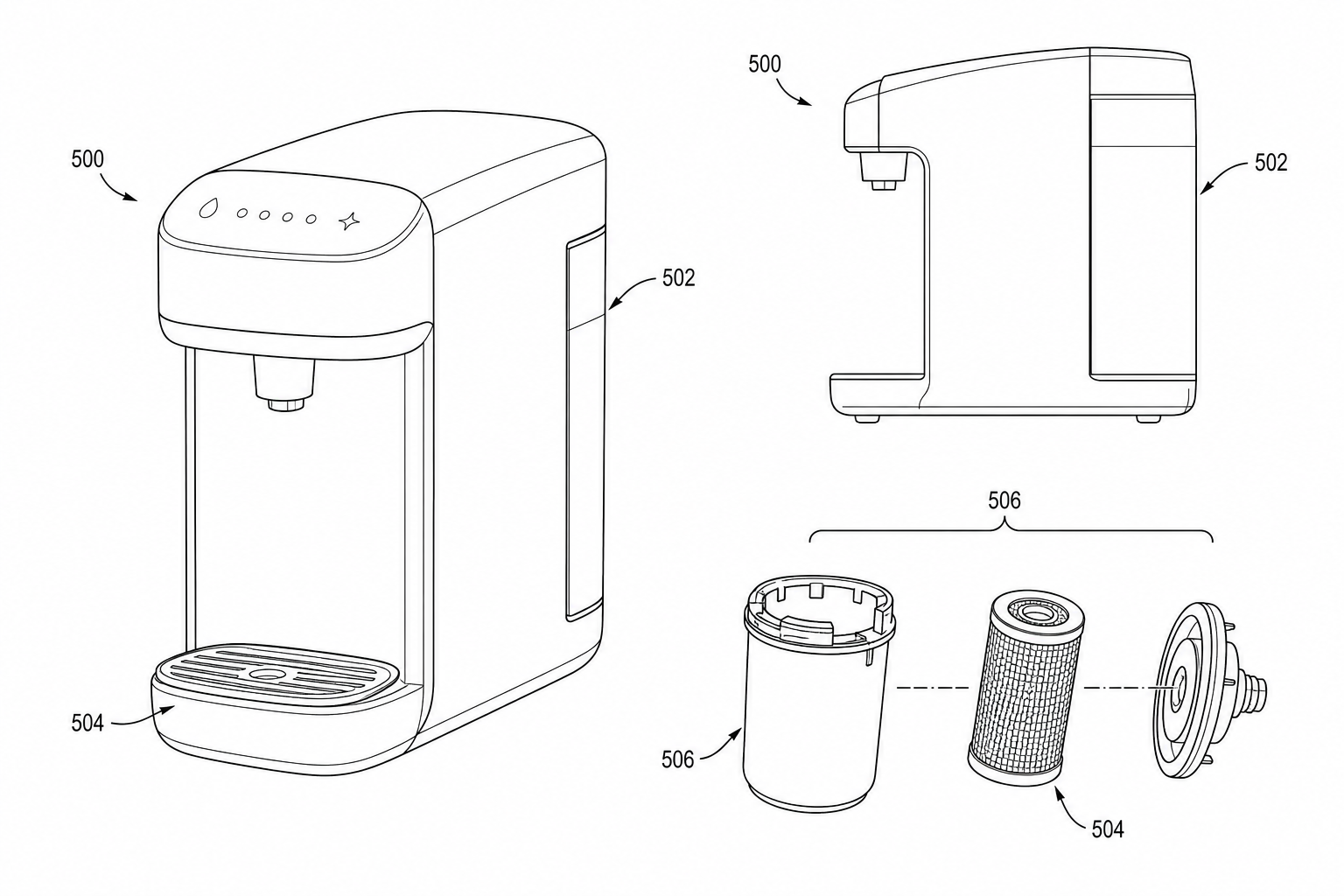
Product Photo to Patent Line Art: When AI Works and When to Redraw
Learn when product photos can be converted into patent line art with AI, when manual redraw is safer, and how to prepare views for patent filing.
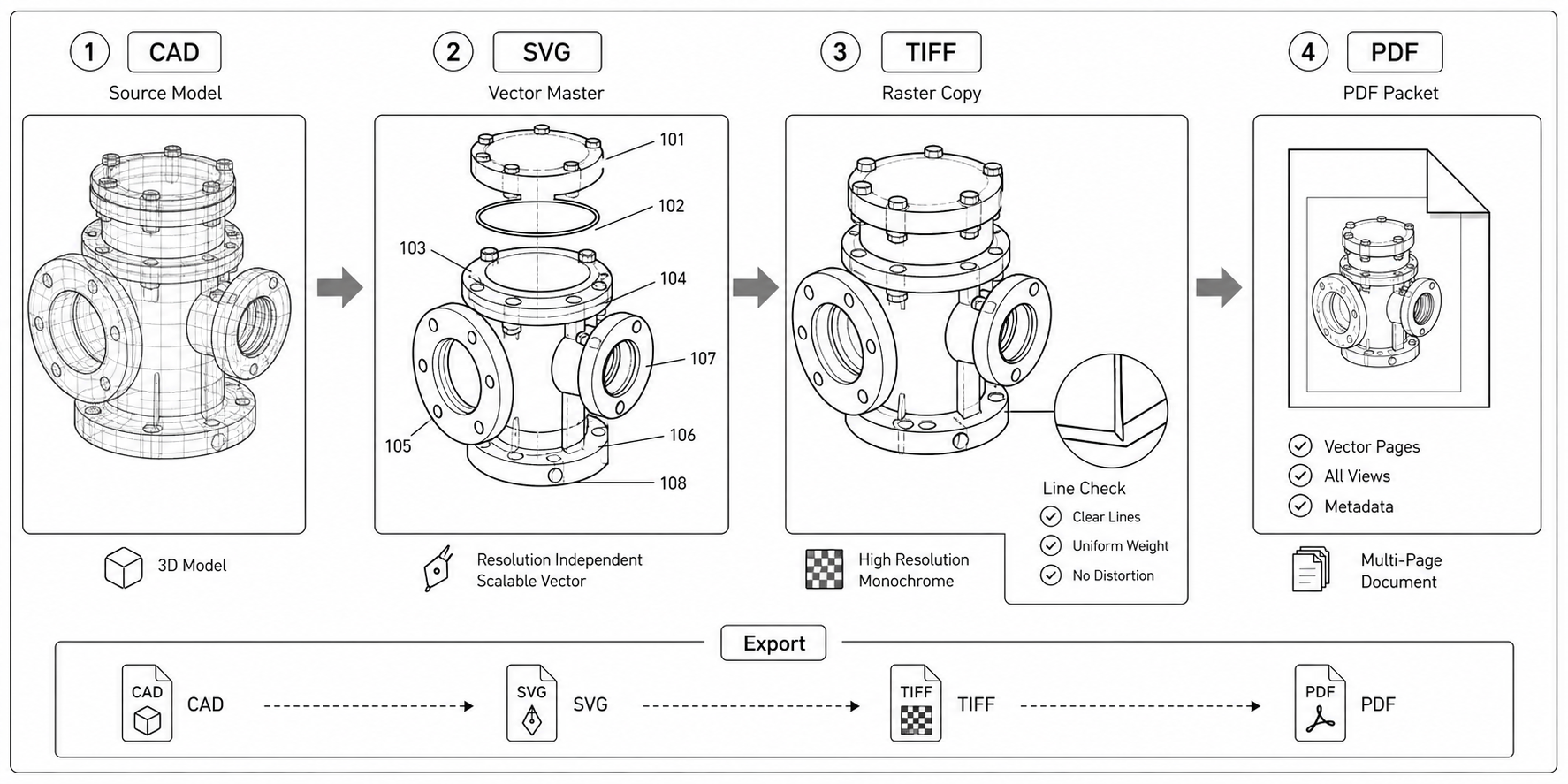
CAD to SVG to TIFF: A Patent Drawing Export Workflow
A practical pipeline for converting CAD output into patent drawings — SolidWorks, Fusion 360, FreeCAD to SVG, then Inkscape cleanup, then TIFF or PDF for filing.
Newsletter
Join the community
Subscribe to our newsletter for the latest news and updates