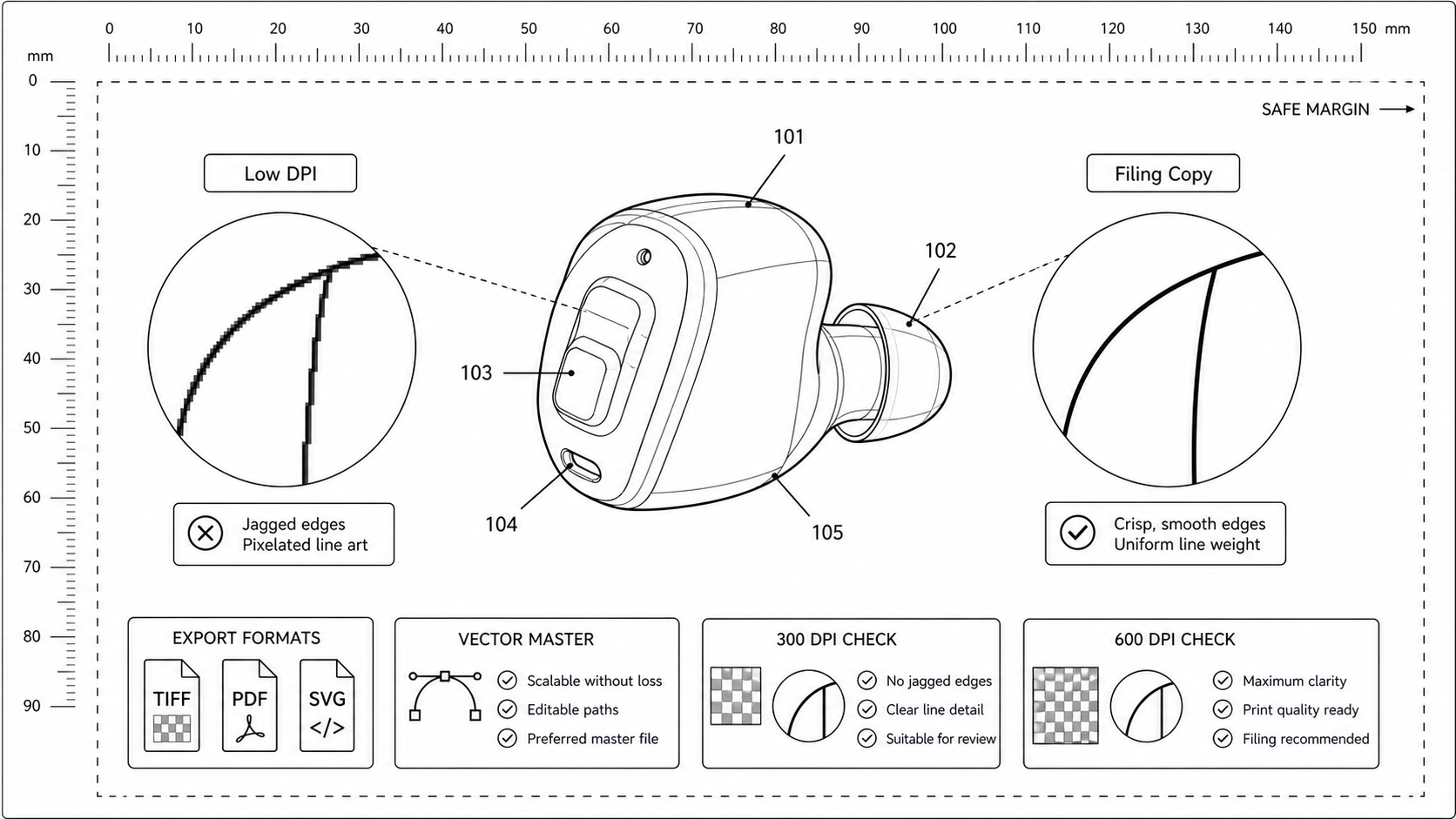
Patent Figure DPI Requirements: 300, 600, and When Vector Wins
What DPI patent offices actually expect, when raster is acceptable, and how to export TIFF and PDF figures that survive USPTO and PCT scanning without quality loss.
TL;DR: No patent office writes a DPI number into its rules, but USPTO and PCT pipelines scan at 300 DPI — so 300 DPI is the floor and 600 DPI is the practical target for raster line art (a 0.15 mm leader line is only 1.8 pixels at 300 DPI and can vanish in scanning). For pure line art, vector PDF beats raster entirely; if you must submit TIFF, use 1-bit CCITT Group 4 at 600 DPI with anti-aliasing off, and always keep an editable vector master for amendments.
DPI failures in patent drawings rarely look like obvious blur. They look like a hairline that disappears after USPTO scanning, a reference numeral that is technically the right height but mushy at the edges, or a leader line that pixelates at the corner of a figure. The objection comes back as "lines not uniformly thick and well-defined" — a Rule 11.7 citation that points at every figure in the set.
Check resolution and line clarity before export. Open Enhance for upscaling, or Figure Checker for a full review.
What the Offices Actually Specify
No major office writes a hard DPI number into its drawing rules. They specify outcomes, and DPI is one of several ways to satisfy those outcomes.
| Office | Rule | What it says about resolution |
|---|---|---|
| USPTO | 37 CFR 1.84(l) | Lines must be "durable, clean, black, sufficiently dense and dark, and uniformly thick and well-defined." Numbers and reference characters must be at least 0.32 cm (1/8 inch) tall. |
| PCT | Rule 11.7 | Drawings must be "executed in durable, black, sufficiently dense and dark, uniformly thick and well-defined, lines and strokes without colorings." |
| EPO | Rule 46(2)(a) EPC | "Lines and strokes shall be uniformly thick and well-defined." Same language as PCT. |
| CNIPA | Implementing Regs Rule 19 | Lines must be "uniform in thickness and clearly drawn." No DPI specified. |
| JPO | Form 30 | Lines must be "clear and durable." JPO accepts PDF and TIFF through its electronic filing portal; the portal validates raster minimums but does not publish them as a number. |
| KIPO | Drawing rules | Lines must be clear and reproducible. The KIPO portal accepts PDF and TIFF; raster figures below roughly 300 DPI are flagged at upload. |
The translation: every office is testing whether the figure survives reproduction. They scan, photocopy, microfilm, or PDF-flatten the drawing during their workflow. DPI matters only as a proxy for "will the line still be a line after that pipeline runs."
Why 300 DPI is the Floor
USPTO bulk-scans incoming paper at 300 DPI. EFS-Web and Patent Center electronic submissions get re-rendered through the office PDF pipeline, which down-samples raster content above 300 DPI but does not upsample anything below. Two consequences:
- A 200 DPI raster figure looks fine on your screen and noticeably degraded in the USPTO public PAIR record.
- A 600 DPI raster figure looks slightly sharper than the 300 DPI version on PAIR — the difference comes from anti-aliasing room during the down-sample.
PCT Receiving Offices do the same kind of pipeline. The IB scans at 300 DPI for the published PCT pamphlet. Anything submitted below 300 DPI loses detail at publication.
Why 600 DPI is the Practical Target
Three reasons to default to 600 DPI rather than 300:
- Anti-aliasing room. A 1-pixel line at 300 DPI is a 1-pixel line at 300 DPI. A 2-pixel line at 600 DPI down-samples to a clean 1-pixel line at 300. The latter looks crisper because the scanner can use the extra sample to position the edge.
- Mixed line weights survive. Patent figures use multiple line weights — a 0.3 mm contour, a 0.15 mm leader, a 0.5 mm section line. At 300 DPI, the 0.15 mm leader is only 1.8 pixels wide. Half a pixel of rounding turns it into a 1-pixel hairline that the scanner can drop. At 600 DPI, the same leader is 3.6 pixels — survives rounding.
- Reference numerals stay legible. USPTO requires numbers to be at least 0.32 cm (about 38 pixels at 300 DPI). At 300 DPI, the numeral edges show pixel stepping; at 600 DPI they are smooth.
The downside of 600 DPI: file size is 4x. A typical patent figure is 2-4 MB at 600 DPI TIFF Group 4. A 12-figure drawing set at 600 DPI is 30-50 MB. USPTO accepts up to 100 MB per PDF on Patent Center, so a normal drawing set fits.
When Vector Wins, and When It Doesn't
A vector file (SVG, PDF with vector strokes, EPS) is resolution-independent. There is no DPI; lines scale to whatever resolution the rendering pipeline uses. For patent line art — contour drawings, flowcharts, block diagrams, exploded views — vector is strictly better than raster.
Use vector when:
- The figure is line art only (no shading, no photographic content)
- You want to keep an editable master
- You need to update reference numerals after a claim amendment
- The same figure ships to multiple offices in different formats
Use raster when:
- The source is a photograph (product photo, microscope image, scanned sketch)
- The figure is a grayscale rendering with smooth shading
- You need a fixed pixel-perfect appearance for archival
- The downstream system only accepts TIFF or PNG
Most patent drawing sets are line art, which means most figures should be vector-first. Export raster (TIFF or PNG) only as the filing copy. Keep the vector as the editable master.
TIFF Settings That Survive USPTO
If you need to submit TIFF (some offices and some firms still prefer it), these are the safe settings:
| Setting | Value | Why |
|---|---|---|
| Compression | CCITT Group 4 | Lossless, designed for bilevel line art, small files |
| Color depth | 1-bit (bilevel) | USPTO black-and-white requirement |
| DPI | 600 (300 minimum) | Survives down-sample, preserves thin lines |
| Anti-aliasing | Off | Bilevel does not support it; turning it on creates gray pixels that print muddy |
| ICC profile | None | Bilevel TIFF has no color profile |
| Page size | A4 (210 × 297 mm) | Required by PCT/EPO/CNIPA/JPO/KIPO; accepted by USPTO |
Avoid LZW-compressed TIFF and uncompressed TIFF — they work but the files are 5-10x larger with no quality benefit for line art.
For grayscale or photographic content (rare in patent drawings, but happens for design patents or biology micrographs), switch to 8-bit grayscale TIFF with LZW compression at 400-600 DPI.
PDF Settings That Survive USPTO
Patent Center accepts PDF, and PDF is the recommended electronic filing format. The settings that matter:
- PDF/A-1b or PDF/A-2b for archival compliance. Patent Center does not strictly require PDF/A, but it accepts it and the office archive prefers it.
- Embed fonts. Reference numerals rendered as text need their font embedded. The safe option is to convert numerals to outlines (paths), which removes the font dependency entirely.
- Vector content for line art. Do not rasterize the drawing into a single image inside the PDF. Keep the SVG content as PDF vector paths.
- Image compression for any embedded raster. ZIP for line art, JPEG quality 85+ for photographic content. Never use the "smallest file size" preset — it down-samples raster content aggressively.
A common failure: exporting a figure from Word or Google Docs as "PDF for web." That preset down-samples all raster content to 96 DPI. The resulting figure looks fine on screen and rejects at the USPTO formalities desk.
The DPI Trap in AI-Generated Figures
AI image generators output at a pixel resolution, not a DPI. A model that produces a 1024 × 1024 image is silent about whether that image is meant to be 96 DPI or 300 DPI. The DPI metadata field is whatever the export library writes.
To make the math concrete: a USPTO sight rectangle on A4 is 17.0 × 26.2 cm. At 300 DPI, that requires 2008 × 3094 pixels. At 600 DPI, 4016 × 6188 pixels.
A model that outputs at 1024 × 1024 maps to about 150 DPI on the sight rectangle. Usable for a draft, below the floor for a filing copy. A model that outputs at 2048 × 2048 is 300+ DPI on the sight — acceptable, but no room for crops or zooms.
The practical workflow:
- Generate at the highest supported resolution
- Run upscaling (Enhance handles this with 300 and 600 DPI presets)
- Convert to vector if the figure is line art (PatentFig AI's vectorize step)
- Export as PDF with vector strokes, or as TIFF Group 4 at 600 DPI
Common DPI Failures, Decoded
| What the examiner sees | Underlying cause | Fix |
|---|---|---|
| "Lines not uniformly thick" | Anti-aliased raster down-sampled by office pipeline | Re-export as 1-bit TIFF at 600 DPI, or convert to vector |
| "Letters not durable" | Reference numerals exported at 72 or 96 DPI | Re-export at 300 DPI minimum; convert numerals to paths |
| "Drawing not satisfactory for reproduction" | "Save as PDF for web" preset down-sampled the figure | Re-export with print-quality preset, embed fonts, do not rasterize line art |
| "Drawings cut off" | Page size set to letter, scaled onto A4 | Set canvas to A4 from the start, do not rescale |
| "Halftone shading visible" | Grayscale anti-aliasing in a bilevel context | Switch to bilevel TIFF or vector PDF; remove grayscale shading |
A Short Pre-Export Checklist
Before sending a drawing set to filing, walk through:
- Open the file at 100% zoom. Lines should be crisp, not fuzzy.
- Zoom to 400%. Reference numerals should still be readable, not pixel-stepped.
- Print one page at actual size. Lines should be black and uniform, not gray.
- Run Figure Checker. Confirm DPI, color mode, line weight, and reference numeral readability.
- Keep the vector master separate from the raster filing copy.
If any line looks gray on the printed test page, the export is below the line-density threshold. Re-export with anti-aliasing off and bilevel color depth.
The Editable Master Stays Vector
The strongest argument for keeping a vector master is amendments. A first-action office rejection often asks for one reference numeral to be added, one leader line to be redrawn, or one view to be expanded. With a vector master, that is a 30-second edit. With a flattened TIFF master, the only option is to rebuild the figure from scratch.
Generate as vector, export as vector when the office accepts vector PDF, and keep the SVG file in version control alongside the specification. The raster filing copy is a derivative artifact, not the source of truth.
Next step: Run your figures through the free figure checker before you file — it validates margins, line weight, DPI, and numerals against your target office. Or review the patent drawing requirements summary.
Author

Categories
More Posts
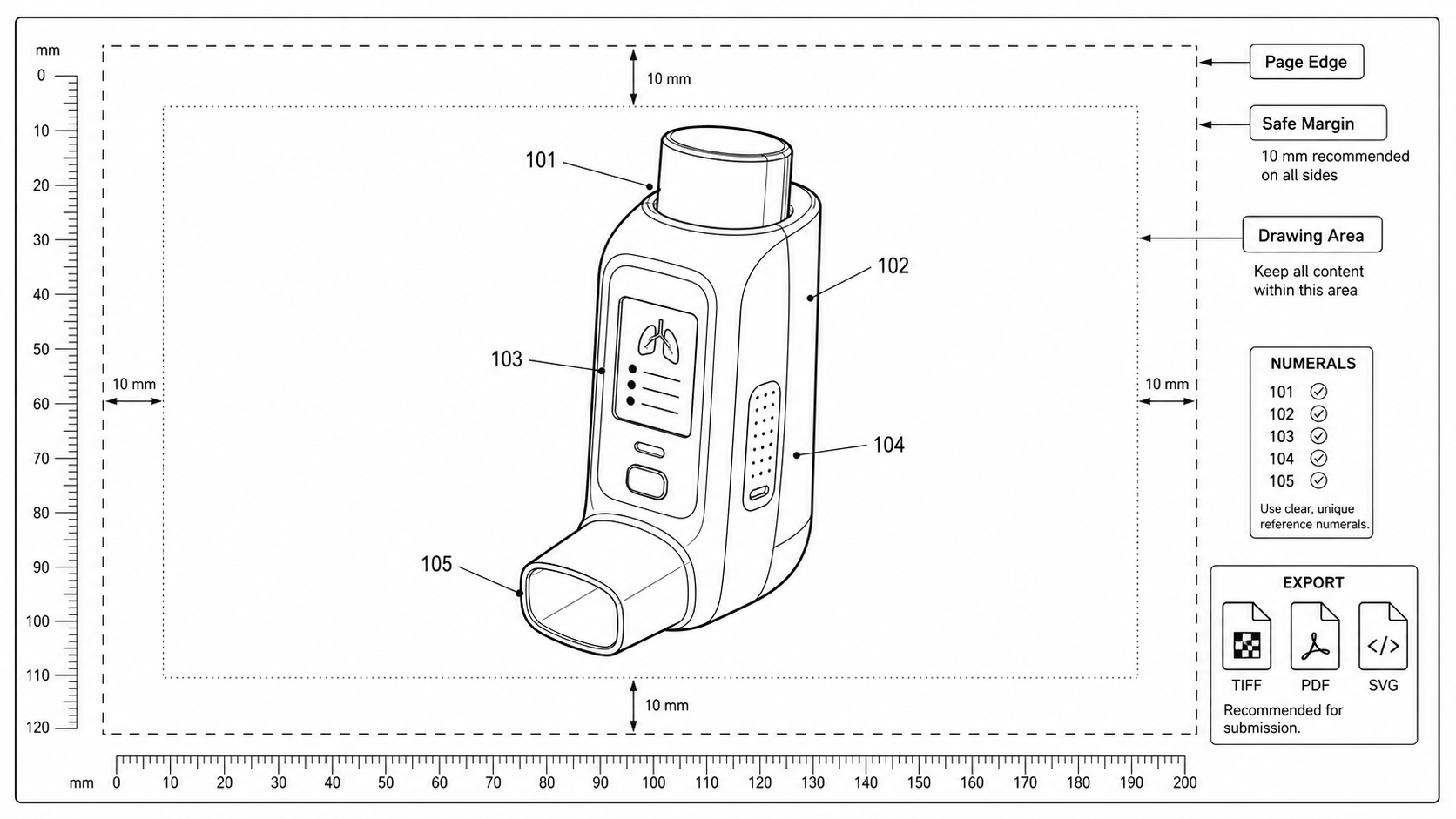
Patent Drawing Margin Rules: USPTO, EPO, PCT, CNIPA, JPO, KIPO
Sheet size, top, bottom, left, and right margin requirements for patent drawings across USPTO, EPO, PCT, CNIPA, JPO, and KIPO, with a practical pre-export check.
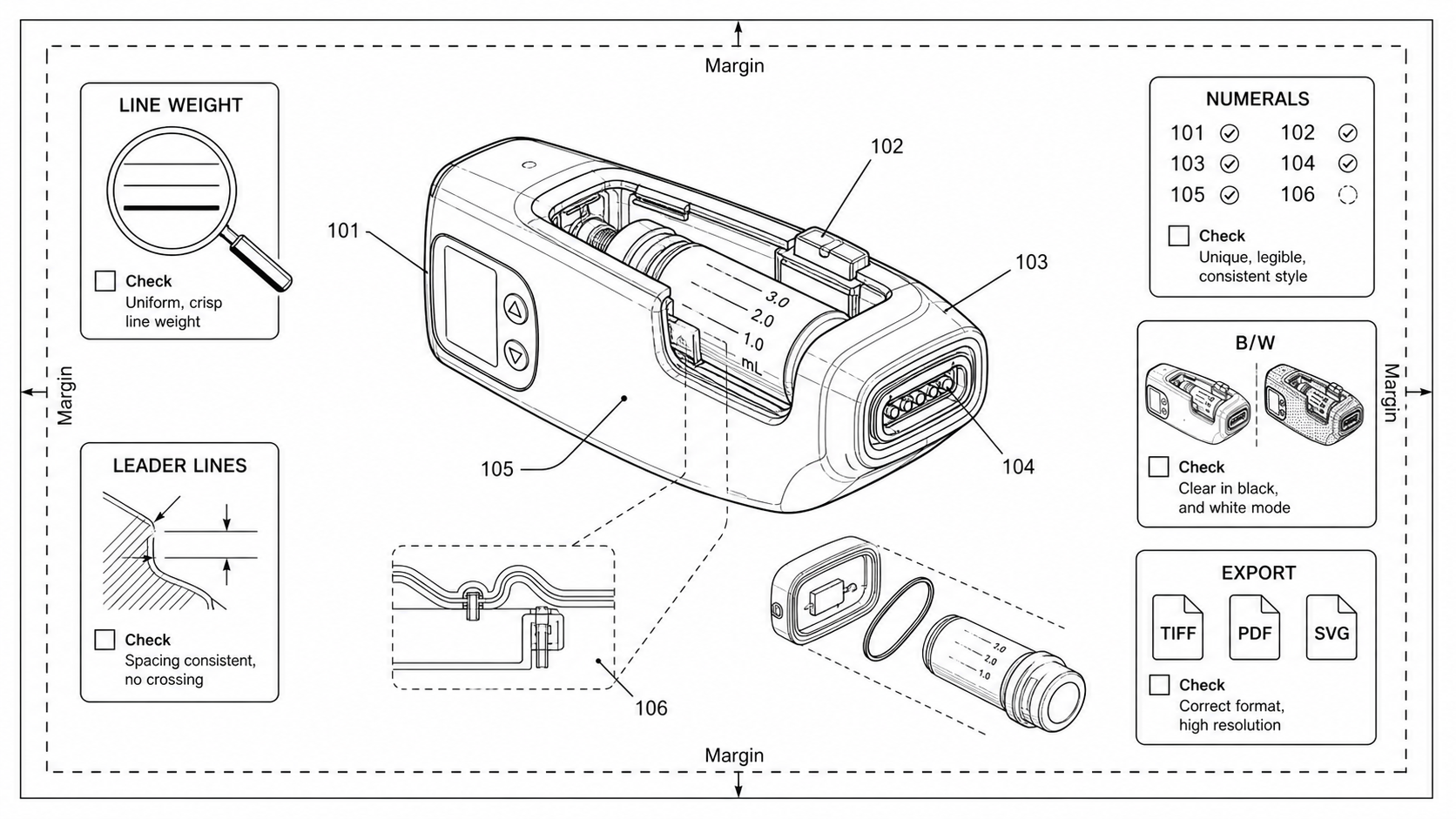
How to Check Patent Drawing Compliance Before Filing
A practical pre-filing compliance check for patent drawings: sheet, lines, numerals, views, formats, export. Per-office quirks for USPTO, EPO, PCT, CNIPA, JPO, KIPO.
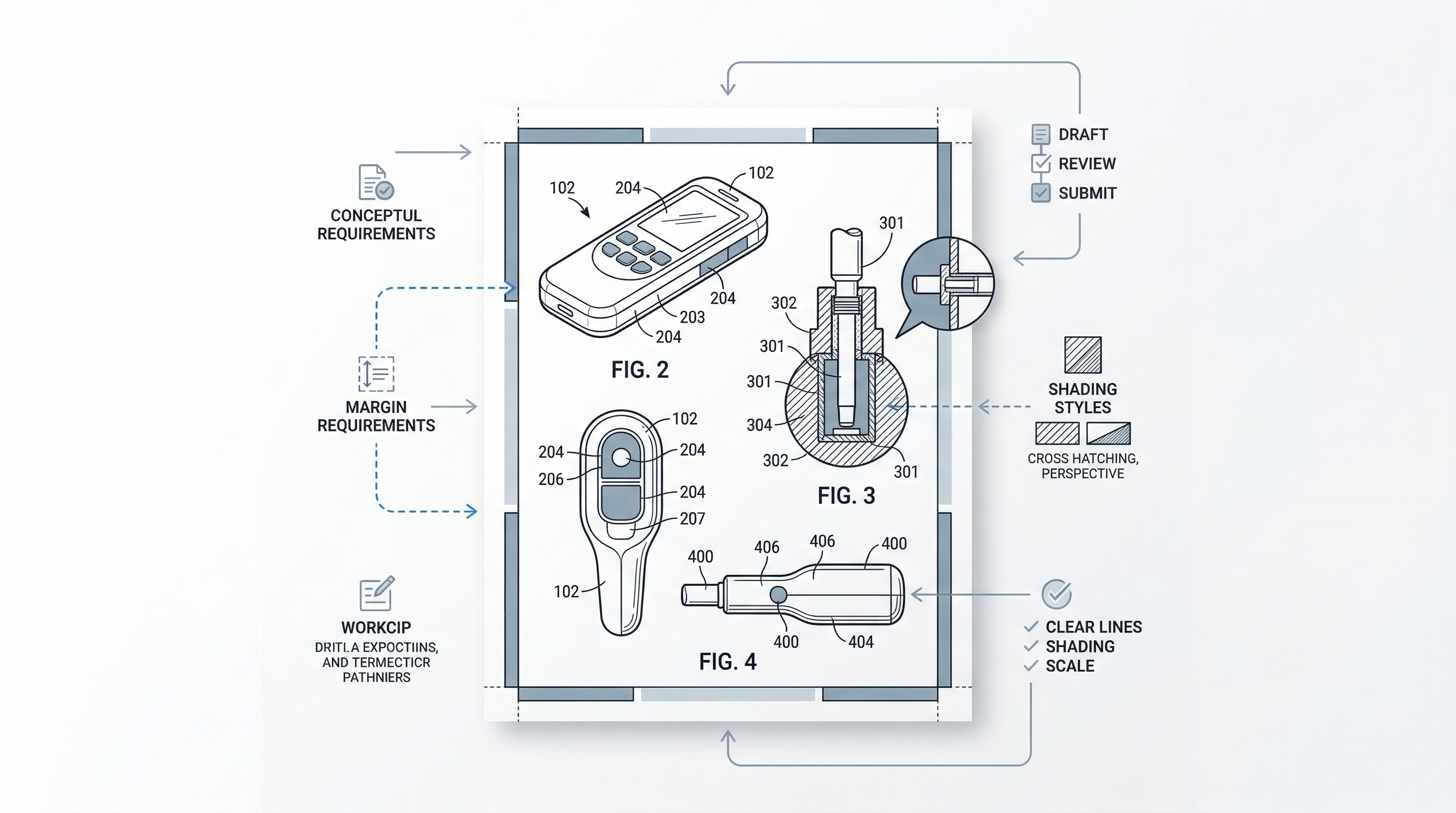
USPTO Patent Drawing Rules 2026: 7 Common Mistakes That Delay Filings
Why do USPTO drawings get rejected? 7 common 37 CFR 1.84 mistakes that trigger Office Actions, plus a free high-speed AI workflow to fix them. 2026 guide.
Newsletter
Join the community
Subscribe to our newsletter for the latest news and updates