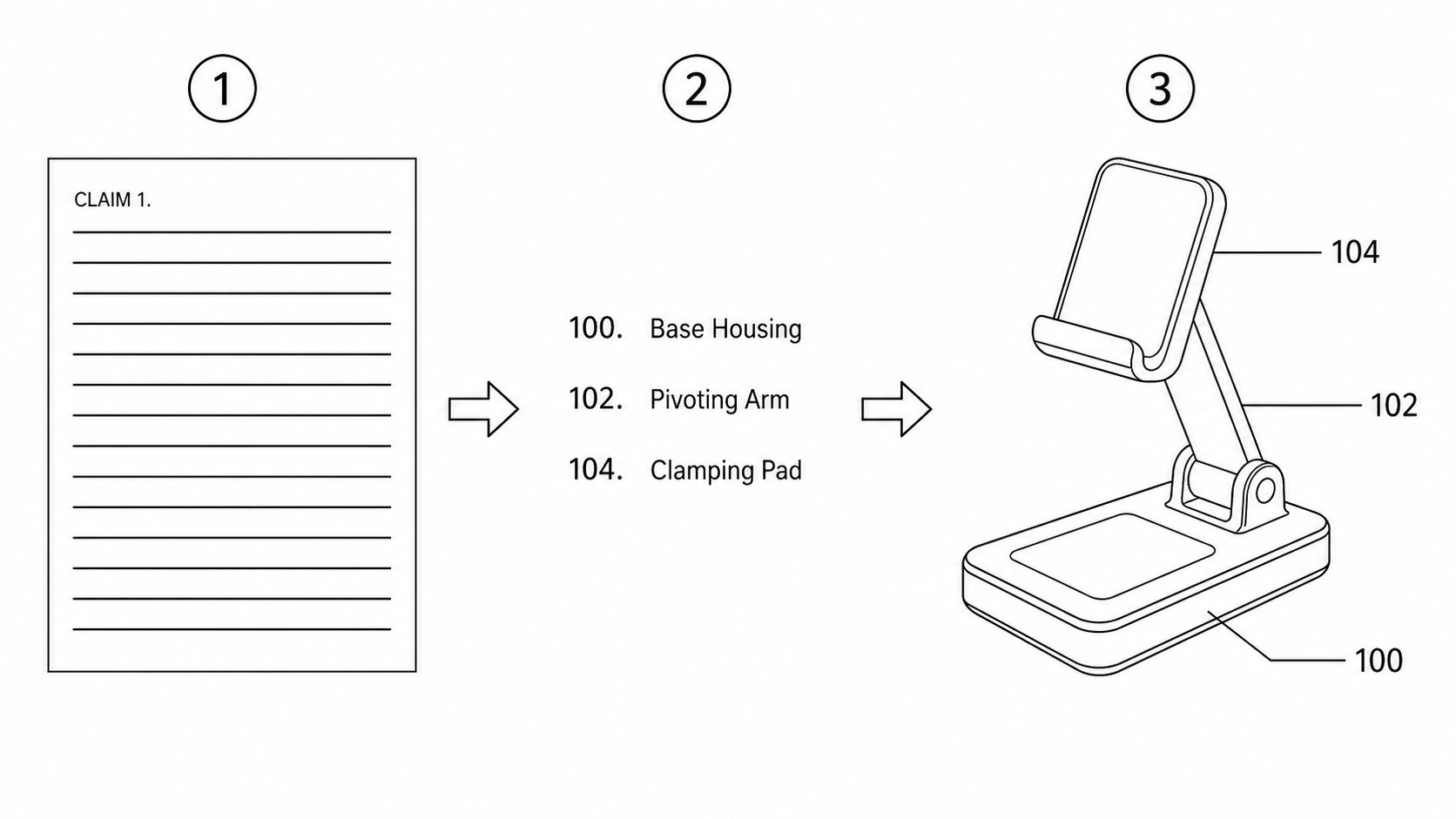
From Patent Claims to Figures: Turning Claim and Specification Text into Drawings
A practical workflow to turn patent claim and specification text into compliant figures: extract components, assign consistent reference numerals, and generate filing-ready drawings.
If you draft the claims before you draw, you are in good company: a large share of patent work starts with approved text and then needs figures that match it. This guide walks through a claims-first workflow: paste the claim or specification text, extract the recited components, assign reference numerals once, and generate figures whose structure and numbering line up with what the specification already says.
Why a Claims-First Workflow Makes Sense
Most "how to make a patent drawing" advice assumes you begin with a sketch, a CAD model, or a product photo. In practice, many filings run the other way. The agent receives an invention disclosure, drafts the claims and the detailed description, gets them approved, and only then needs drawings that illustrate the very elements the claims recite.
This is especially common for filers working through CNIPA, where the workflow frequently centers on pasting finished claim text and producing figures to accompany it. The same pattern shows up in any practice that drafts text first: software and method inventions, mechanical assemblies described from a disclosure memo, or continuations where the specification is fixed and you simply need cleaner figures.
The advantage of starting from text is that the claims are already a structured description of the invention. A well-written claim names each element, says how the elements relate, and implies a hierarchy ("a housing", "a circuit board disposed within the housing", "a connector mounted on the circuit board"). That is most of the information a figure needs. The job is to read it out, map it to parts, number those parts, and draw them — without re-describing the invention from scratch.
Step 1: Paste the Claim and Specification Text
Start with the broadest independent claim plus any dependent claims that introduce new elements. If you have it, paste the corresponding portion of the detailed description too. The specification usually carries detail the claim omits — spatial relationships, optional features, and the antecedent language that tells you which elements are the same across paragraphs.
Open the patent drawing generator and paste the text directly. A few habits make the extraction cleaner:
- Include the antecedent basis. Claim language like "the housing" only makes sense if "a housing" was introduced earlier. Pasting the full claim chain (or the relevant specification paragraphs) lets the tool resolve which mentions refer to the same physical part.
- Keep the element nouns intact. Don't paraphrase "a longitudinally extending support member" into "the bar." The precise noun phrases are what get turned into labeled parts.
- Mark structural vs. method content. If you have both apparatus claims and method claims, note which is which. Apparatus claims become structural views; method claims become flowcharts.
You are not writing a drawing brief here. You are handing over the text you already approved and letting the extraction step do the translation.
Step 2: Extract the Recited Components
The next step reads the pasted text and pulls out a list of distinct elements. Think of it as building the parts list that a figure legend would eventually show. From a claim such as:
A wearable device comprising a housing, a strap coupled to the housing, a circuit board disposed within the housing, and an optical sensor mounted on the circuit board and exposed through an opening in the housing.
the extraction should produce: housing, strap, circuit board, optical sensor, opening. Note that "opening in the housing" is a feature worth its own numeral even though it isn't a standalone object — examiners expect features referenced in the description to be findable in a figure.
Two things matter at this stage:
- Deduplication. "The housing" mentioned five times is one part, not five. Resolving antecedent basis prevents the same element from getting two numerals.
- Relationships. "Disposed within", "mounted on", "coupled to", "exposed through" — these tell you how parts sit relative to each other, which drives whether you need a perspective view, a cross-section, or an exploded view to show the relationship clearly.
Review the extracted list before moving on. This is the single most leverage-heavy checkpoint in the whole workflow: if the parts list is right and complete, everything downstream stays consistent.
Step 3: Assign Reference Numerals Once
Reference numerals are the connective tissue between your text and your figures, and inconsistency here is one of the most common reasons drawings get objected to. The rule of thumb is simple: assign each element a numeral once, in one table, and never let a part have two numbers or a number refer to two parts.
A clean numbering scheme typically uses increments of ten (10, 20, 30, 40 …) so you have room to insert related sub-parts later (12, 14) or amendment additions (35) without renumbering everything. Sub-components of a labeled assembly often take letter suffixes (30a, 30b) so their relationship to the parent part stays obvious.
From the wearable example you might lock:
- 10 — housing
- 20 — strap
- 30 — circuit board
- 40 — optical sensor
- 50 — opening
The critical property is that this table is the source of truth. Every figure you generate pulls from it. If part 30 is the circuit board in Fig. 1, it is the circuit board in Fig. 3 and Fig. 5 too, and it is element 30 in your written specification. When the numerals in the drawings, the numerals in the description, and the parts they point to all agree, you've eliminated an entire category of office-action formality objections. (For the formatting side of numerals — how big they should be, that they sit outside the part, and how lead lines connect them — see the patent drawing requirements reference.)
Step 4: Generate Figures That Match the Described Structure
With the parts list and numeral table in place, generate the figures. The relationships you captured in Step 2 decide which views you need:
- A perspective or front view when the claim mostly establishes that parts exist and connect ("a strap coupled to the housing").
- A cross-section when a claim recites something inside something else ("a circuit board disposed within the housing"). You cannot show an internal part from the outside, so an enclosing relationship usually forces a section view.
- An exploded view when assembly order or the mounting relationship between several parts is the point ("an optical sensor mounted on the circuit board").
- A flowchart for any method claim, where each recited step becomes an ordered, labeled block.
The output should be black-and-white line art on a pure white background, with the reference numerals from your table placed outside each part and connected by squiggly lead lines (or straight leaders) to the feature they identify. This is what USPTO 37 CFR §1.84 and CNIPA both expect: clean line work, no shading where it isn't needed, numerals that are legible and unambiguous.
Because the figure is built from the same element table as your specification, the numbers come out matched by construction. You are not transcribing "10" from a CAD callout into your description by hand and hoping you didn't fat-finger it.
Step 5: Refine, Add the Missing Views, and Check
First-pass figures rarely capture every nuance, and claims get amended. The point of a claims-first workflow is that fixes stay local. Rather than redrawing, use chat-to-modify edits that respect the existing numbering:
- "Rename part 30 to 32" — when an amendment renumbers an element.
- "Add a part 90, a gasket, seated between 10 and 30" — when a dependent claim or amendment introduces a new element.
- "Split the housing 10 into an upper portion 10a and a lower portion 10b" — when the description distinguishes sub-parts.
- "Show a cross-section along line A-A through the optical sensor 40" — when an internal relationship needs its own view.
For a multi-figure application, generate the full set (front, perspective, section, exploded, plus any method flowcharts) from the one numeral table so the entire set stays internally consistent. The AI patent drawing generator keeps that single numeral set across every figure, which is what makes the set coherent rather than five drawings that happen to share a subject.
Before you export, run the figures through the figure checker. It looks for the formality problems that text-first drawings are prone to: a part mentioned in the specification that never got a numeral, a numeral that appears in two figures pointing at different things, margins or line weights that miss office tolerances, or numerals that overlap the line work instead of sitting clearly outside the part. Clearing those before filing is far cheaper than clearing them in an office action.
A Quick End-to-End Recap
- Paste the independent claim, the relevant dependent claims, and supporting specification text.
- Extract the recited components into a deduplicated parts list, capturing how parts relate.
- Assign each element one reference numeral in a single source-of-truth table.
- Generate the views the relationships demand — perspective, cross-section, exploded, or flowchart — as numbered black-and-white line art.
- Refine with targeted edits, add missing views, and run the figure checker before export.
The throughline is consistency: when the same element table feeds your description and every figure, the numerals can't drift, and the figures genuinely match the structure the claims describe.
How PatentFig AI Helps
PatentFig AI is built for exactly this claims-first path. Paste your claim or specification text, and it extracts the recited components, assigns a consistent set of reference numerals, and generates compliant black-and-white line art — multi-view sets, cross-sections, exploded views, and method flowcharts — all drawing from one shared numeral table so part 30 stays part 30 across the whole filing. Chat-to-modify editing handles amendments without a redraw, the convert, enhance, and vectorize tools get you filing-ready output formats, and the figure checker catches numeral and formatting issues that target USPTO 37 CFR §1.84 and CNIPA rules before you submit.
Have the text already? Paste your claims into the generator and turn them into figures that match.
Author

Categories
More Posts
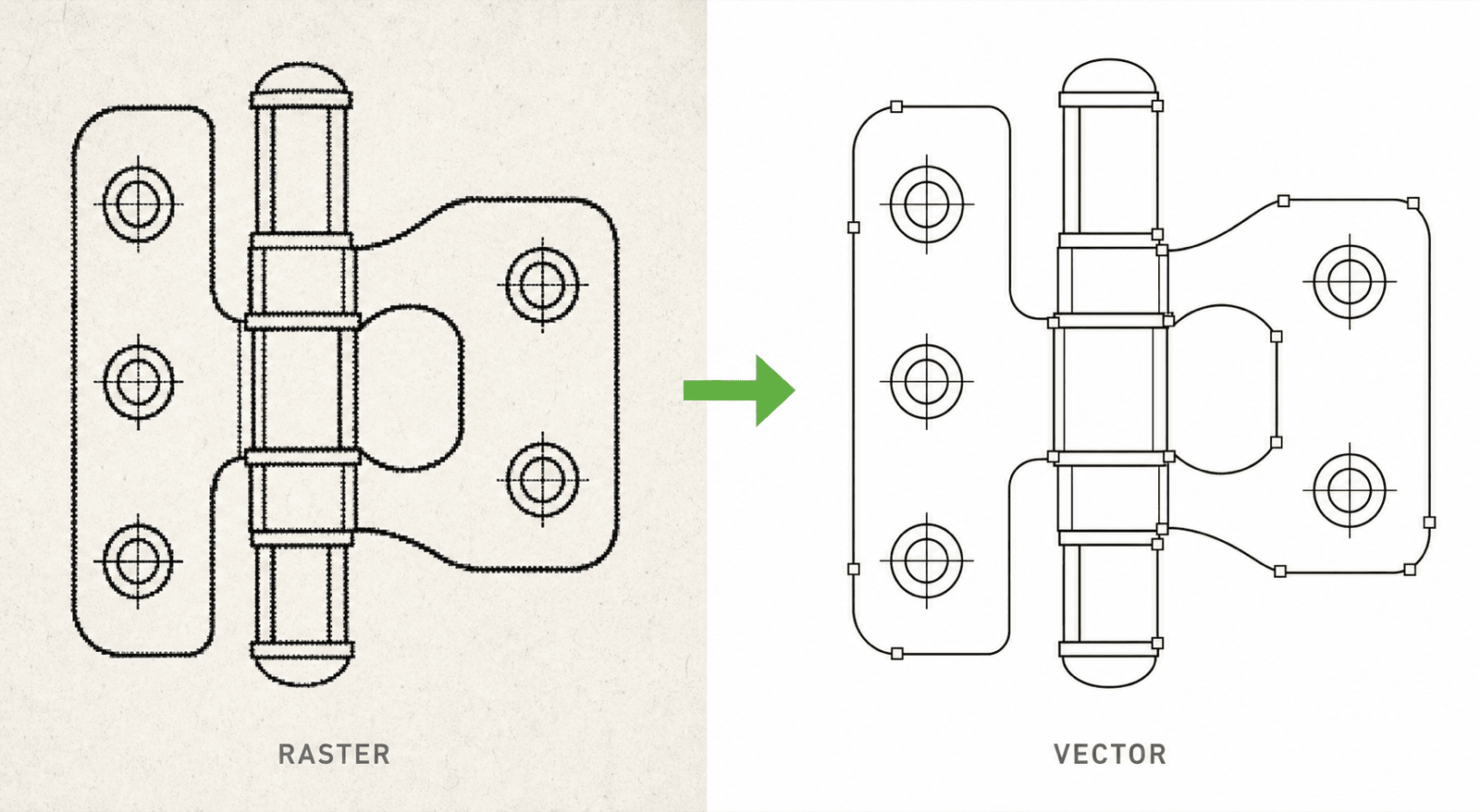
How to Vectorize Patent Drawings: Raster to Editable SVG/DXF Without Double Outlines
Why generic auto-tracing turns every patent line into two outlines, when centerline vectorization is the right tool, and a workflow for converting scans and PNG line art into editable SVG or DXF masters.
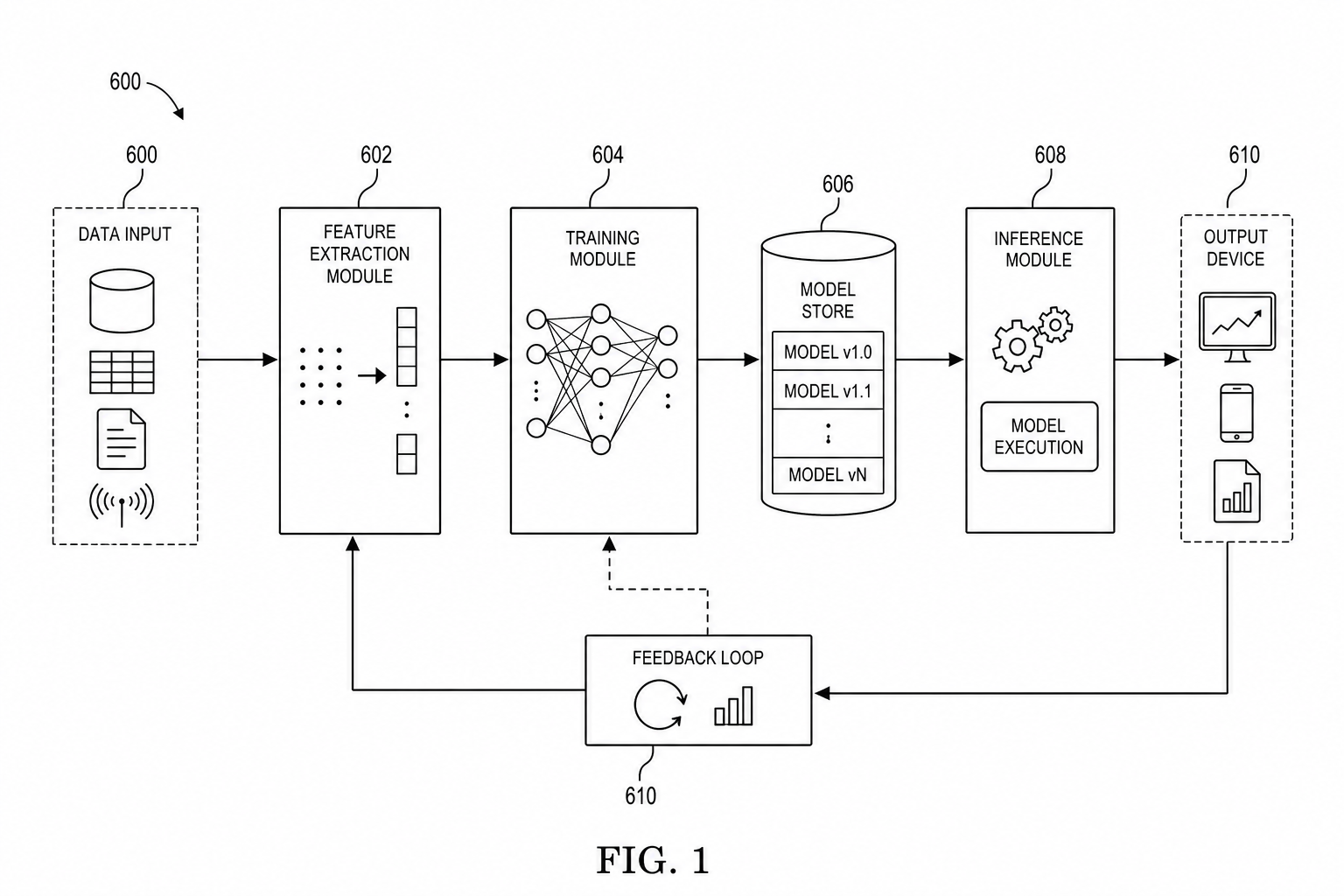
AI/ML Patent Diagrams: Model Pipeline, Training Flow, and Inference System
Create clearer AI and machine learning patent diagrams for model pipelines, training workflows, inference systems, RAG architectures, and agent workflows.
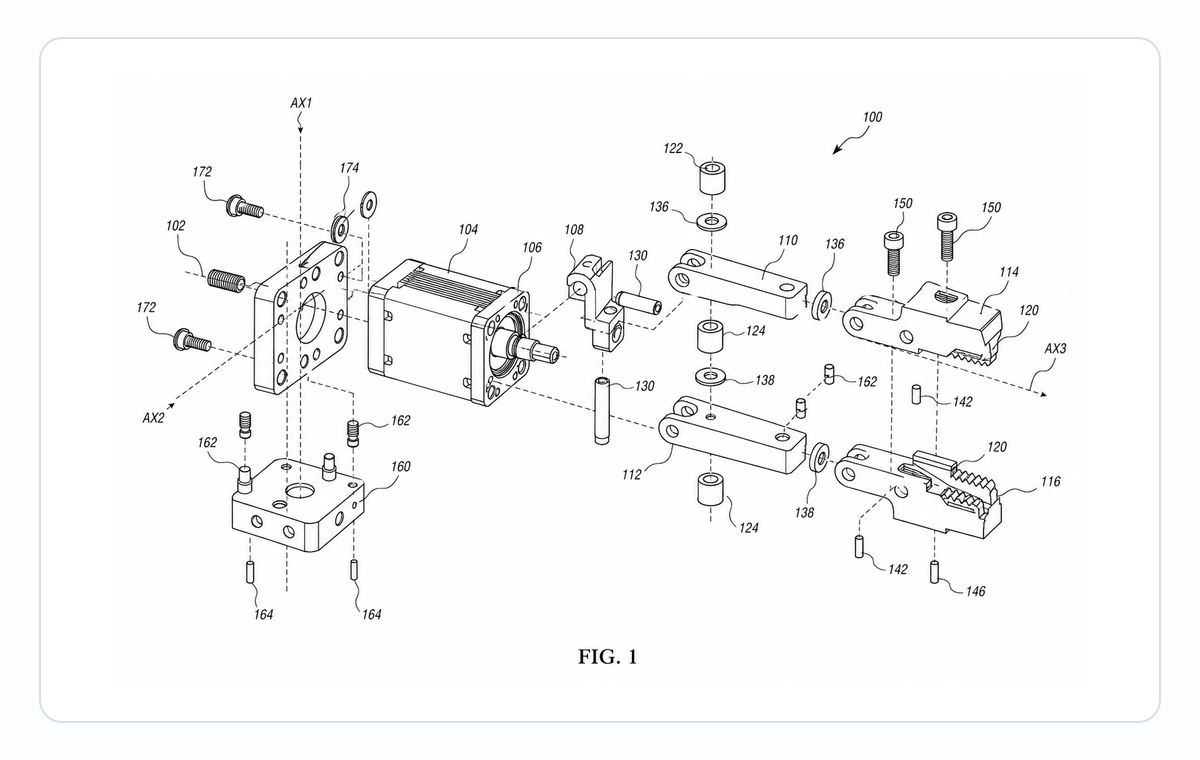
Exploded View Patent Drawing Workflow: Parts, Spacing, Callouts, and Review
Plan exploded view patent drawings with clear part order, spacing, leader lines, reference numerals, and pre-export review.
Newsletter
Join the community
Subscribe to our newsletter for the latest news and updates