Common Patent Drawing Mistakes That Slow Down Filing
The recurring failure modes in patent drawings — line weight, numerals, views, color mode, extraneous matter — with the rule that catches each and the fix that ships fastest.
TL;DR: The 24 recurring patent drawing failures fall into five buckets — line and stroke quality, reference numerals, view structure, format and export, and design-patent broken lines. The cheap ones (light lines, margin overruns, missing sheet numbers) take minutes to re-export; the expensive ones (numeral-to-spec mismatches, wrong broken-line scope) take hours to days because they touch the specification. Fix the root cause once — the tool preset or the numeral table — then re-export the whole set.
Most patent drawing rejections do not come from rare or exotic failures. They come from the same ten or fifteen mistakes, repeated across thousands of filings, year after year. The good news: every one of them has a known fix. The bad news: they slip into final filings anyway because the drawing review process is rarely structured around the categories that fail.
Run a pre-export drawing check that targets these failure modes specifically. Open Figure Checker.
Mistakes Sorted by Category
Group the failures by what they damage, not by which office catches them. The same line-weight mistake gets cited by USPTO under 37 CFR 1.84(l), by EPO under Rule 46(2)(a), and by PCT under Rule 11.7, but it is the same mistake.
Line and stroke mistakes
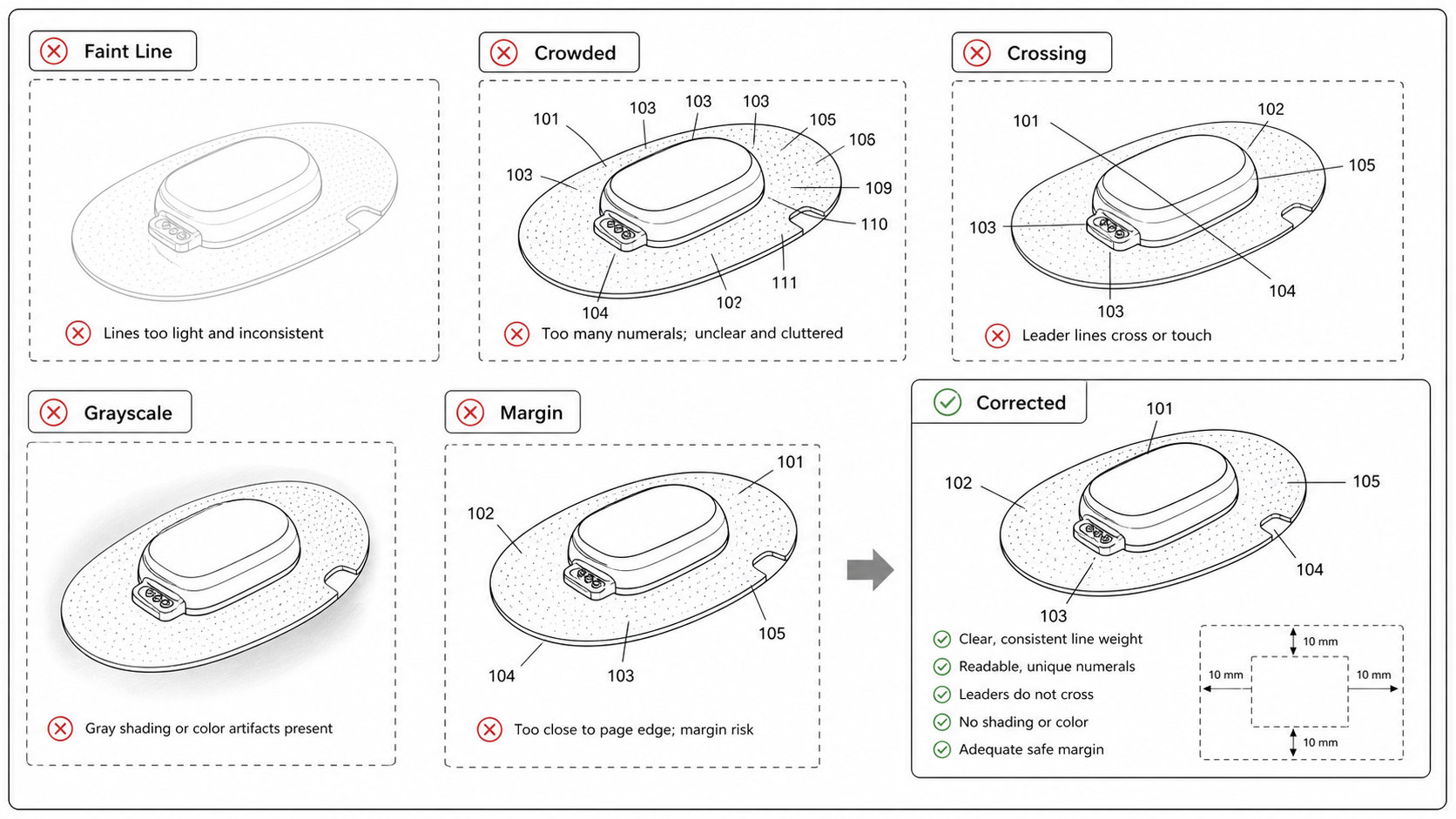
- Lines too light or thin to survive scanning. USPTO scans incoming paper at 300 DPI; a 0.1 mm hairline survives at 600 DPI source but disappears at 300. Rule: 37 CFR 1.84(l). Fix: enforce a minimum line weight of 0.3 mm for contour lines, 0.15-0.2 mm for leaders.
- Anti-aliased rasters that print muddy. Anti-aliasing produces gray edge pixels. In a 1-bit TIFF, those pixels round to either black or white, and the line edges turn jagged or fuzzy. Fix: export as bilevel without anti-aliasing, or keep the figure as vector.
- Mixed line weights within a single view. Drawing tools that export per-stroke widths can produce inconsistent line weight across the same figure. Reviewer reads it as "some parts emphasized, some parts demoted" and asks for normalization. Fix: normalize line weights in the vector master before raster export.
- Color or grayscale shading. Outside of 37 CFR 1.84(a)(2) petitions, color is rejected. Grayscale shading is technically allowed for surface texture in design patents, but using it casually in utility patents triggers Rule 11.7 citations from PCT. Fix: convert to bilevel black-and-white before export.
Reference numeral mistakes
- Duplicate numerals across the set. Number 10 labels the housing in FIG. 1 and a button in FIG. 3. Caught when the examiner cross-references with the spec. Fix: maintain a single numeral table for the whole drawing set; never reuse a number for two parts.
- Numeral in figure, no mention in spec. Number 22 appears in FIG. 2 but the written description does not mention it. Fix: regenerate the numeral list from the figures and check every entry against the spec; remove or add as needed.
- Numeral in spec, no figure presence. The spec describes "the latch 22" but no element 22 appears anywhere in the figure set. Fix: same — regenerate the table and reconcile.
- Numerals under the height threshold. USPTO requires 0.32 cm (1/8 inch). At 300 DPI that is 38 pixels. Smaller numerals get cited under Rule 1.84(p). Fix: set minimum font size for numerals; print at 100% to confirm.
- Leader lines that cross. Two leader lines from different numerals cross inside a view. Visually noisy and triggers a "drawings not clearly drawn" objection. Fix: redraw leaders with curves or move numerals to less crowded positions.
- Leader lines that touch the wrong component. The numeral is right but the leader ends on an adjacent part. Subtle and easy to miss in busy figures. Fix: zoom to 200% before export and trace each leader by hand.
View and structure mistakes
- Cross-section line missing. A cross-section figure is included but the parent figure does not show the cutting plane and the section direction. Caught under USPTO MPEP 608.02(VIII). Fix: add a section line with arrows and a designator on the overview figure.
- Exploded view direction inconsistent. Two halves of an exploded assembly fly apart in different directions, or the gap between parts changes mid-figure. Reviewer reads it as "parts come apart in three directions at once." Fix: pick one axis per exploded view and stick to it.
- Perspective inconsistent with claimed orientation. A wearable device shown in left perspective in one view and right perspective in another with no labeling. The examiner cannot tell which side is left. Fix: label perspective views (e.g., "front perspective", "rear perspective") and keep one perspective per figure number.
- Detail view lacks parent reference. A detail view is included without an indicator on the parent figure showing where the detail came from. Caught under 37 CFR 1.84(h)(4). Fix: add a circled callout on the parent figure with the detail-view designator inside.
Format and export mistakes
- Wrong sheet size. A drawing built on US letter scaled onto A4 at export. The aspect ratio change moves some content into the margin. Fix: draw on A4 from the start unless the filing is USPTO-only.
- Wrong DPI. A "Save as PDF for web" preset down-samples to 96 DPI. The figure looks fine on screen and pixelates after office scanning. Fix: use print-quality presets, 300 minimum, 600 recommended for line art.
- Fonts not embedded. Reference numerals rendered as text in a PDF, with the font not embedded. The office PDF pipeline substitutes a default font; numeral height changes. Fix: convert numerals to outlines before export.
- Borders, frames, or watermarks. A decorative rectangle around the figure, a confidentiality watermark, or a "FIG. 1 — DRAFT" stamp. All caught as extraneous matter under 37 CFR 1.84(j) and EPO Rule 46(2)(c). Fix: remove every visual element that is not a view or a reference numeral.
- Logos or branding inside the figure. A company logo placed on the product surface as a watermark; a product name as label text inside the view. Same rule, more common in figures derived from marketing material. Fix: strip all branding before patent use.
- Color profiles attached to bilevel files. A bilevel TIFF saved through Photoshop sometimes gets an sRGB color profile attached. Strict office pipelines reject the file as "color drawing without petition." Fix: strip the profile, or re-export through a profile-free tool like Inkscape's bilevel export.
Design-patent-specific mistakes
- Broken lines used decoratively. Broken lines have formal meaning in design patents — they denote unclaimed environment. Using them as visual texture changes the claim scope. JPO, KIPO, and CNIPA all enforce this strictly. Fix: use broken lines only for unclaimed portions, solid lines for everything claimed.
- Inconsistent broken-line scope across views. A feature shown as solid in FIG. 1 and broken in FIG. 2. Reviewer cannot tell which is claimed. Fix: lock the broken-line scope before drafting and apply consistently across every view.
- Surface shading that obscures the claim. Heavy shading on a feature that is meant to be claimed makes the claim ambiguous. Light shading on an unclaimed feature can look like an attempt to claim it. Fix: shade only what helps the reader understand contour; never use shading to imply scope.
- Insufficient view set. Design patents typically need at least six views (front, rear, left, right, top, bottom) plus one or more perspectives. Missing a view triggers an objection. Fix: confirm the required view set for each office before drafting.
Mistakes That Show Up Late
Some mistakes are visible at draft time. Some only surface after the spec is final or after the office has scanned the figures. The late-surface mistakes are the expensive ones.
| Mistake | Visible at | Cost if missed |
|---|---|---|
| Line weight too light | Draft time, print test | Minutes — re-export |
| Margin overrun | Draft time, with sight overlay | Minutes — reposition view |
| Numeral inconsistency with spec | Spec finalization | Hours — reconcile table |
| View label wrong (FIG. 2 → FIG. 2A) | After figure reorder | Hours — relabel everything |
| Broken-line scope wrong | Office Action | Days — redraw views |
| DPI too low after office pipeline | Public PAIR record | Days — redraw, refile |
| Color profile attached | Office Action | Hours — re-export |
| Decorative border / logo inside view | Office Action | Hours — strip and re-export |
What AI Generation Adds — and Doesn't Fix
AI-generated patent figures fail less often on the cheap categories (margins, DPI, color mode) because the output canvas can be controlled. They fail more often on the structural categories:
- Hallucinated parts. A model that has seen many product photos may invent a feature that the inventor did not describe. The figure looks plausible; the spec does not support it.
- Inconsistent labeling across views. Each view is generated independently. Without a reference numeral table feeding the prompt, the model may label the same part differently in two views.
- Lost detail in cross-sections. A cross-section view generated from a perspective view tends to lose interior structure that was never visible in the source.
- Wrong claim scope in design patents. Broken-line discipline requires understanding which parts are claimed. Models do not infer claim scope; they need explicit instruction.
The mitigation: treat AI output as a first draft, not a final. Feed the model a reference numeral table, validate each generated view against the spec, and run Figure Checker before any export.
The Two Reviews That Catch Most of This
A drawing set rarely needs a fifteen-step review process. Two well-scoped reviews catch most failures:
Structural review (engineer or inventor): does each figure show what the spec describes? Are all numbered parts visible? Are cross-sections and perspectives consistent? Is the broken-line scope right for design patents?
Formalities review (paralegal or filer): are margins inside the sight? Line weight uniform? DPI 300+? Color mode bilevel? No extraneous matter? Sheet numbers present?
The structural review is harder to automate; it depends on understanding the invention. The formalities review is what automatic tools handle well. Splitting them by role is the cleanest way to ship a clean drawing set.
The Fix-Once Pattern
Most failure modes repeat across a drawing set. A line weight too light in FIG. 1 is usually too light in FIG. 2 and FIG. 3 — it is a tool setting, not a per-figure mistake. When fixing a defect, fix the root cause once: the tool preset, the canvas template, the numeral table, the line-weight default. Re-export all figures from the corrected source.
The opposite pattern — fixing one figure at a time after each Office Action — produces drawing sets that pass review but are internally inconsistent. The next examiner finds something else.
Next step: Run your figures through the free figure checker before you file — it validates margins, line weight, DPI, and numerals against your target office. Or review the patent drawing requirements summary.
Author

Categories
More Posts
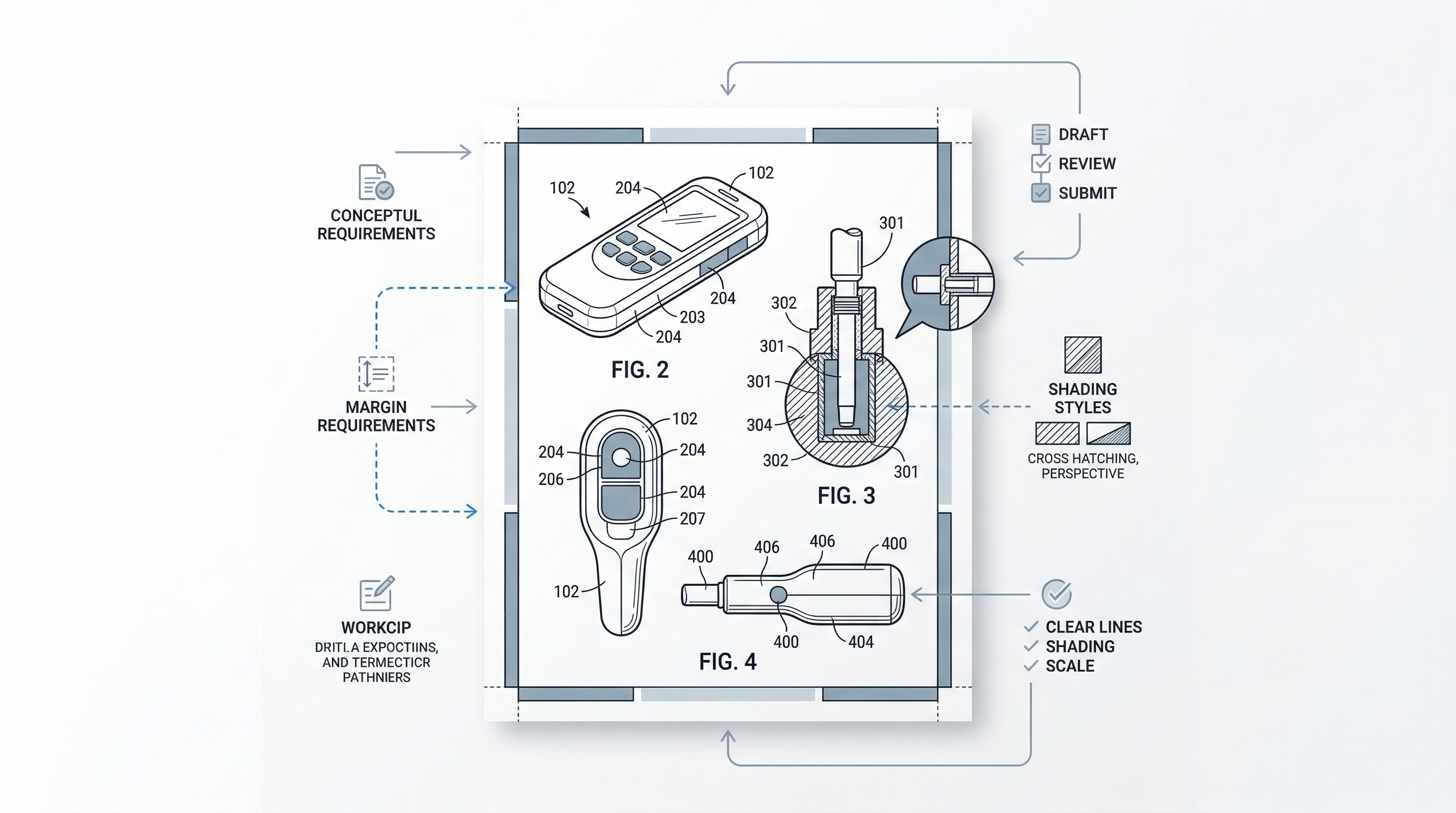
USPTO Patent Drawing Rules 2026: 7 Common Mistakes That Delay Filings
Why do USPTO drawings get rejected? 7 common 37 CFR 1.84 mistakes that trigger Office Actions, plus a free high-speed AI workflow to fix them. 2026 guide.
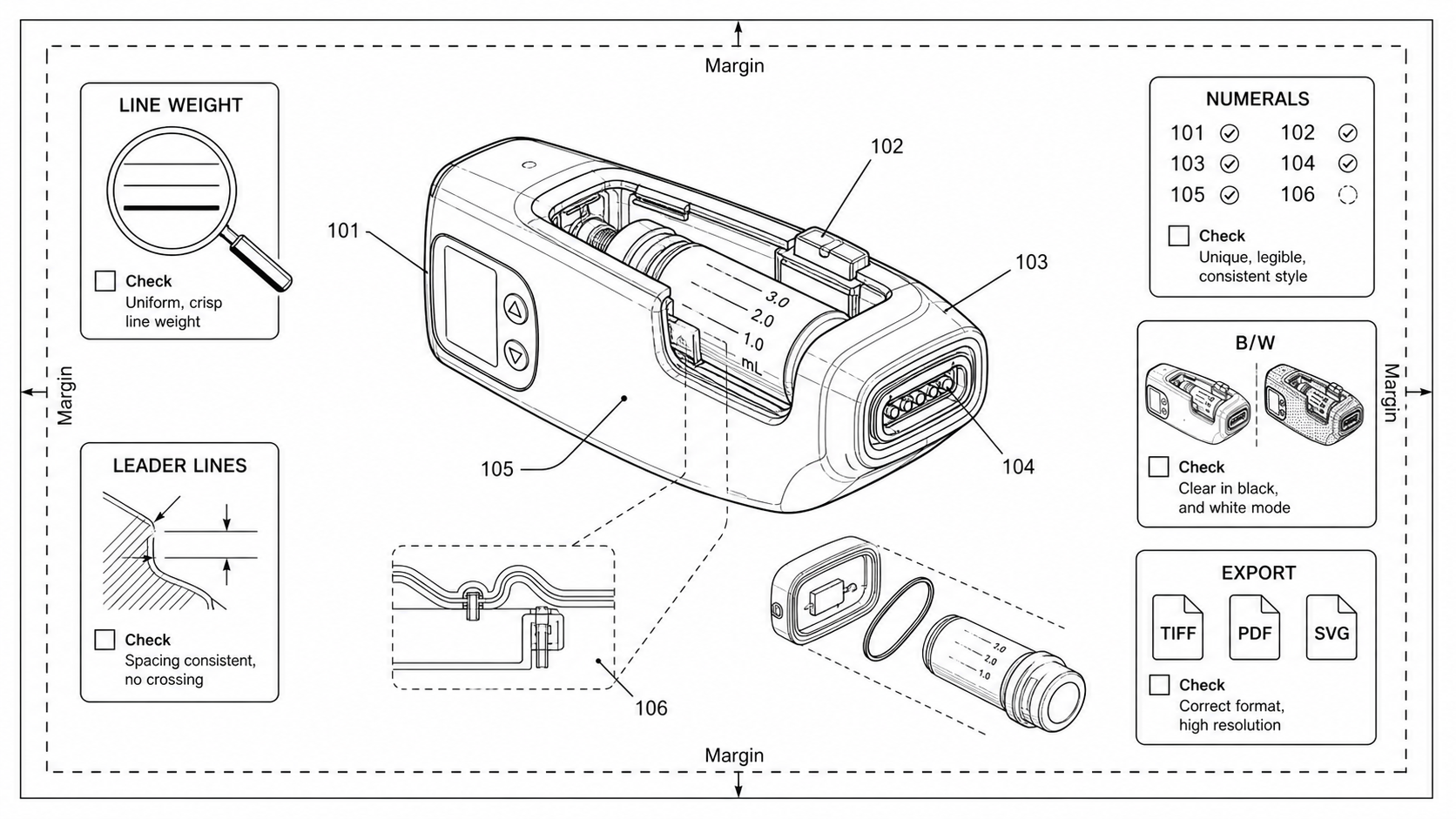
How to Check Patent Drawing Compliance Before Filing
A practical pre-filing compliance check for patent drawings: sheet, lines, numerals, views, formats, export. Per-office quirks for USPTO, EPO, PCT, CNIPA, JPO, KIPO.
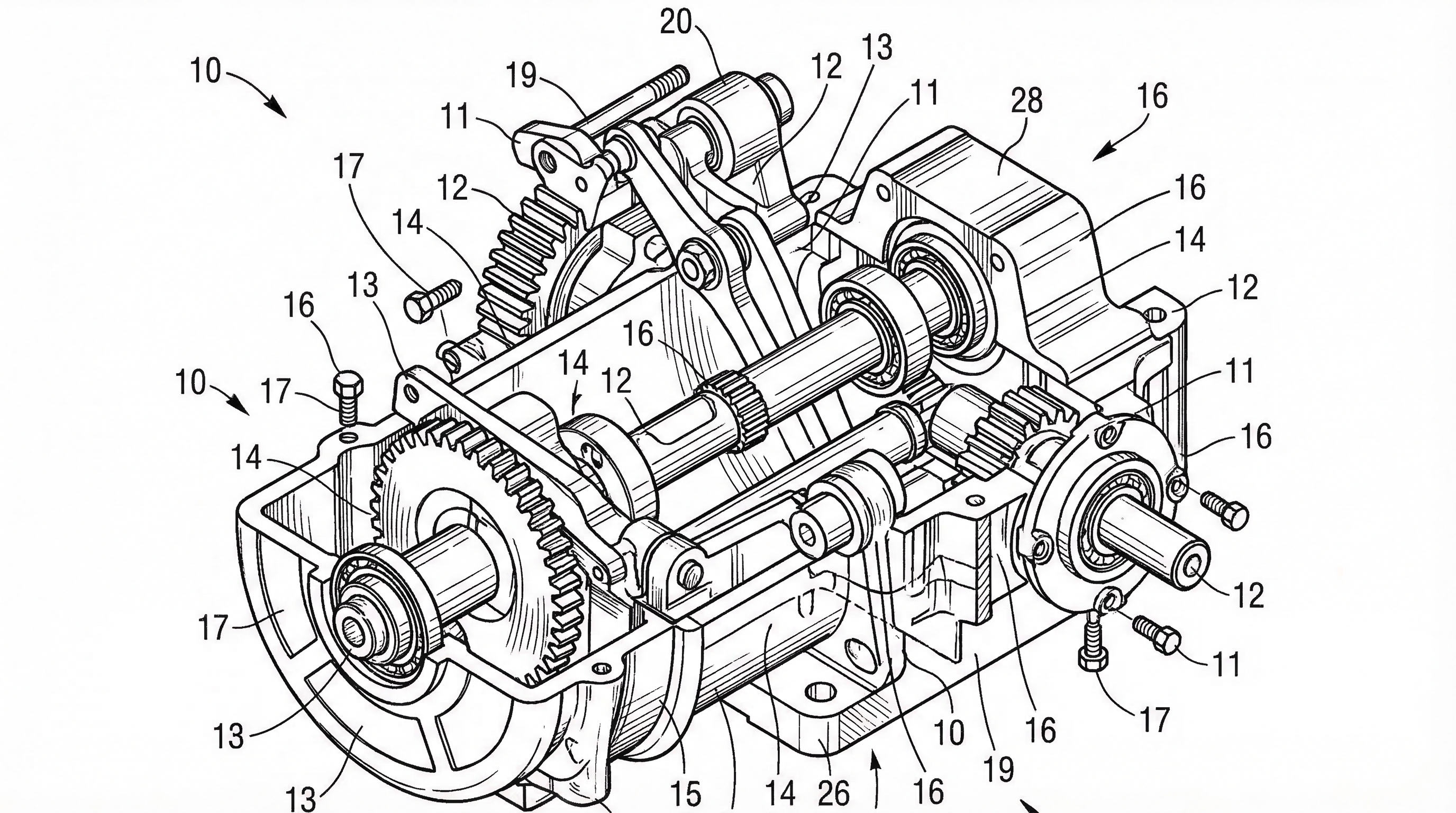
USPTO Patent Drawing Requirements 2026: Checklist, Margins & Examples
USPTO patent drawing requirements for 2026: 37 CFR 1.84 checklist, margins, line rules, reference numerals, examples, and pre-filing checks.
Newsletter
Join the community
Subscribe to our newsletter for the latest news and updates