PatentFig AI vs. Pinch
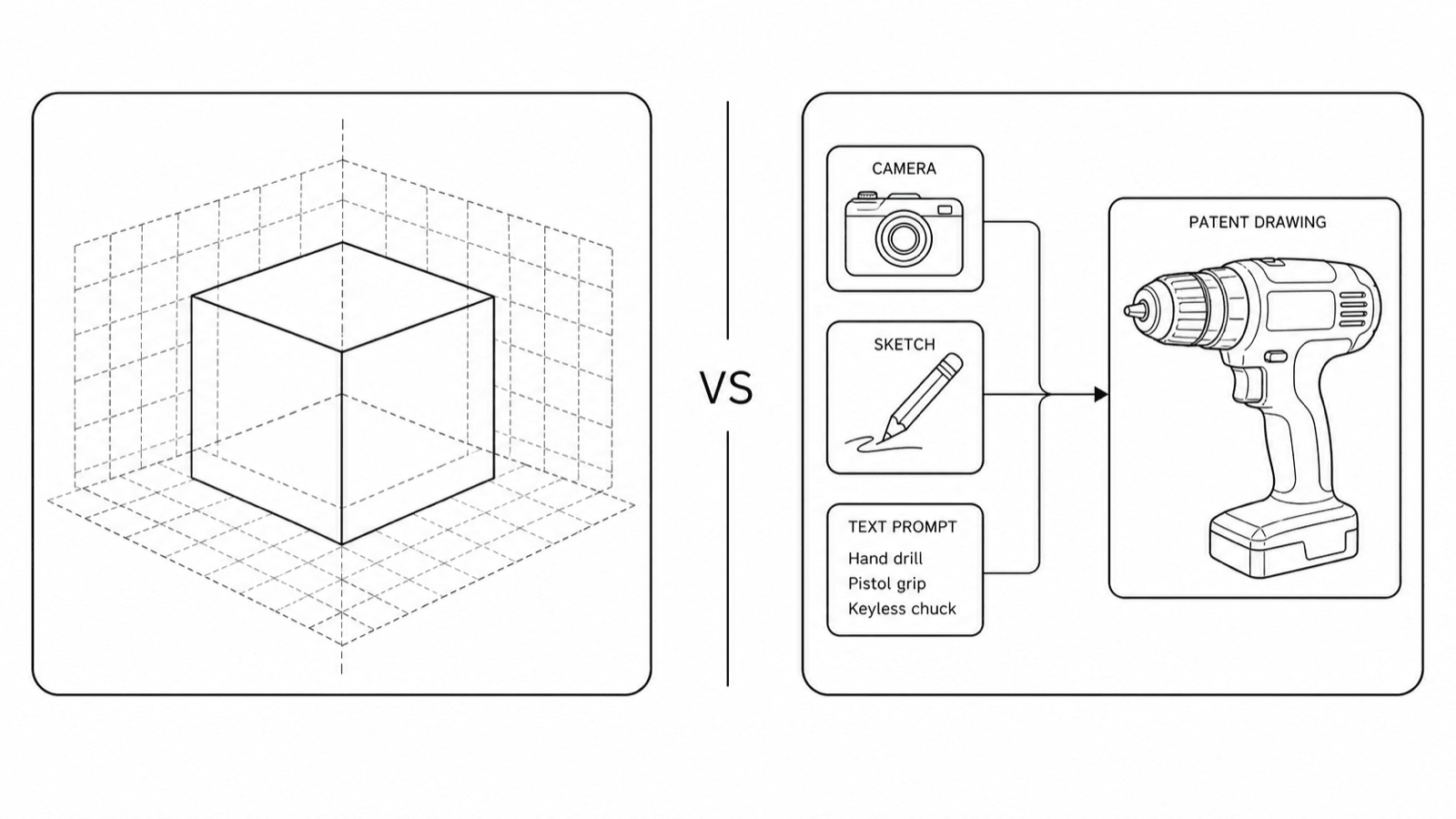
Pinch turns native CAD files into standard patent view sets; PatentFig AI generates and edits figures from photos, sketches, screenshots, or text. They solve overlapping but different problems — here is the honest split.
- Photo/sketch/text input
- Chat-to-modify editing
- Six-office checking
- Flowcharts included
The 30-second answer
- Choose Pinch if you already have a native CAD file (STEP/STL/IGES/X_T) and only need a standard set of black-and-white views — its site describes roughly 21 views generated in about 10 minutes.
- Choose PatentFig AI if your starting point is a photo, sketch, screenshot, or text description, or you need flowcharts, chat-based edits, or compliance checks beyond the USPTO.
- Both are AI patent drawing tools; the deciding question is simply what input you have and how much iteration you expect.
What each tool is built around
The core workflows differ more than the marketing suggests.
1
Pinch: CAD in, views out
Pinch’s site describes uploading STEP, STL, IGES, or X_T files and receiving ~21 standard black-and-white views in about 10 minutes, with DXF and PDF export.
2
PatentFig AI: any input, any figure type
Generate from photos, sketches, screenshots, or text; produce utility figures, design view sets, flowcharts, and block diagrams.
3
Editing model
Pinch automates a fixed view pipeline; PatentFig AI lets you refine individual figures through chat without redoing the set.
4
Compliance scope
Pinch is USPTO-oriented; PatentFig AI checks figures against USPTO, CNIPA, EPO, JPO, KIPO, and PCT rules.
How to decide in two minutes
Answer these and the choice usually makes itself.
What is your input?
Native CAD file → Pinch works directly. Photo, sketch, screenshot, or text → PatentFig AI.
What figures do you need?
Standard orthographic views only → either. Flowcharts, exploded details, design sets → PatentFig AI.
How much will you revise?
One-shot generation → either. Iterative refinement with an attorney’s edits → chat-to-modify favors PatentFig AI.
Where do you file?
USPTO only → either. Multiple offices → PatentFig AI’s six-office checker.
PatentFig AI vs. Pinch at a glance
Based on each product’s public materials as of 2026 — verify current features with the vendors.
Pinch
PatentFig AI
Input types
Native CAD files (STEP/STL/IGES/X_T)
Photo, sketch, screenshot, text description
Figure types
Standard black-and-white view sets (~21 views)
Utility figures, design sets, flowcharts, block diagrams
Editing workflow
Regenerate from the CAD model
Chat-to-modify individual figures
Compliance checking
USPTO-oriented output
Built-in checker for six offices
Export formats
DXF, PDF
SVG, TIFF, PDF, PNG
Pricing model
Per-token pricing
Subscription (free tier; $50/mo · 500 credits · ~50 figures, ~$1 each)
PatentFig AI is the better fit when
- Your source material is a photo, sketch, screenshot, or written description — not a CAD file
- You need flowcharts, block diagrams, or design view sets, not just standard CAD views
- You expect to iterate — chat-to-modify edits beat regenerating from CAD
- You file beyond the USPTO and want CNIPA/EPO/JPO/KIPO/PCT checks
Pinch is the stronger choice when
- You have a finished native CAD model and only need the standard view set
- Batch CAD-to-views automation with DXF output is the whole job
- Per-token pricing fits an occasional, one-off filing better than a subscription
Honest comparison
PatentFig AI vs. Pinch FAQ
Start from whatever you have
Photo, sketch, screenshot, or description — generate compliant patent figures and refine them by chat.
Related tools and guides
Patent drawing software
The full PatentFig workspace for filing-ready figure sets.
Patent drawing generator
Generate a patent drawing from a text description.
Patent drawing examples
Browse sample patent figures across every category.
Figure checker
Validate figures against office rules before filing.
Vectorize
Convert raster figures to SVG, DXF or vector PDF.
Patent drawing standards
USPTO, EPO, CNIPA, JPO, KIPO and PCT drawing rules.