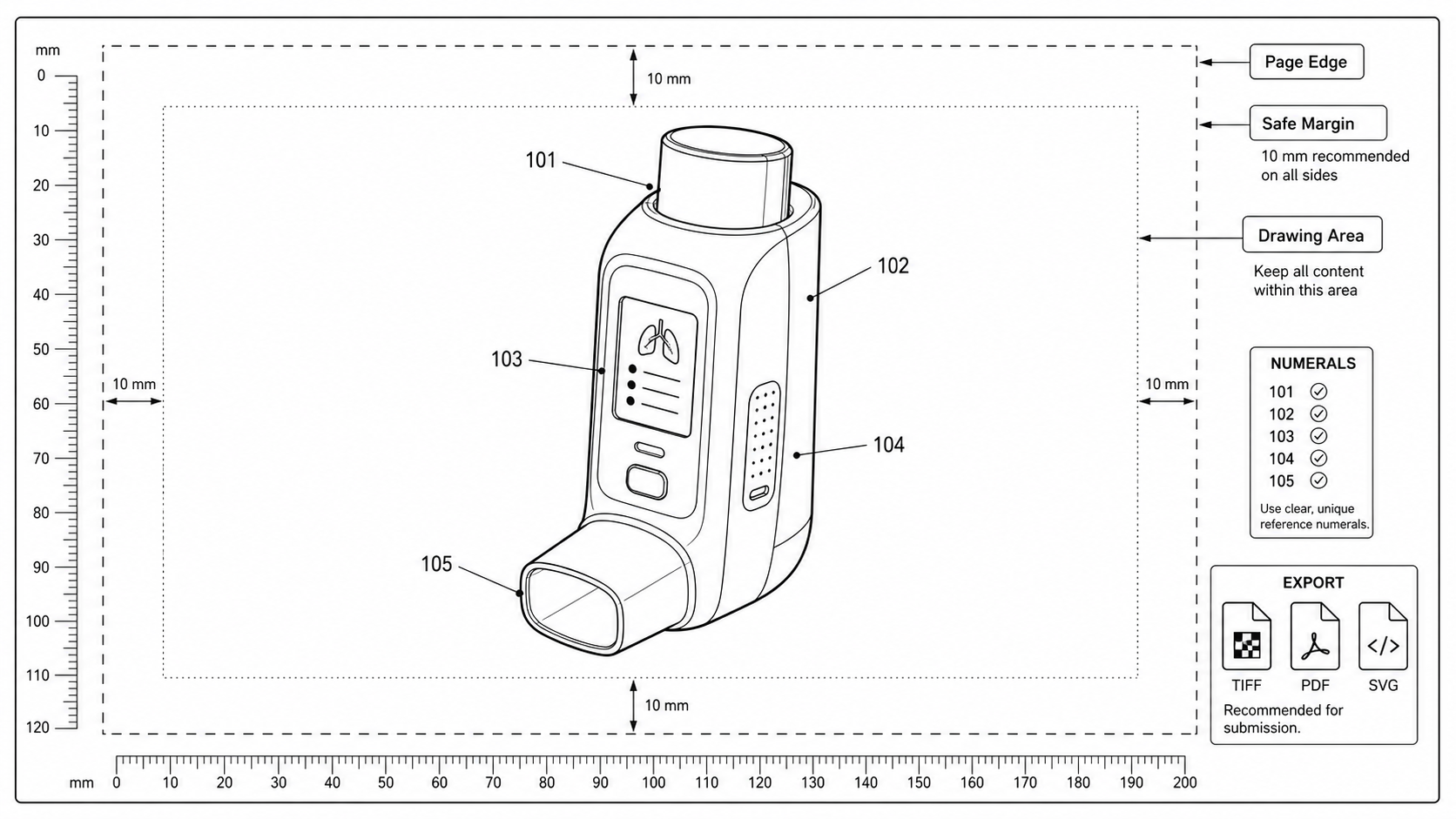
USPTO vs. CNIPA Patent Drawing Requirements: Side-by-Side Rules and the Right Tools for US–China Filings (2026)
How USPTO drawing rules (37 CFR § 1.84) differ from CNIPA on sheet size, margins, shading, reference numerals, figure labels, views, and file formats — plus an honest comparison of manual review, AutoCAD/Visio, SolidWorks, Illustrator, Inkscape, drafting services, firm templates, and PatentFig AI.
If you are a US applicant extending an application to China — or a Chinese applicant coming to the US — the drawings are where formalities objections pile up. The USPTO (37 CFR § 1.84) and CNIPA both want black lines on white with consistent reference numerals, but they disagree on sheet size (the USPTO accepts US Letter or A4; CNIPA accepts A4 only), the bottom margin (1.0 cm vs. 1.5 cm), surface shading (the USPTO allows sparse line shading and stippling; CNIPA is strict about decorative shading and rejects gray tones), and figure labels (FIG. 1 vs. 图1). With a 3D model, SolidWorks plus AutoCAD is the dependable route; Visio handles block diagrams; Inkscape (free) or Adobe Illustrator cleans up vectors; a firm template plus a manual rule-by-rule review catches layout issues; and a professional drafting service suits complex design view sets. When the same invention is being filed with both the USPTO and CNIPA and you want one workflow that produces compliant drawings for both offices, plus a formal check, PatentFig AI (patentfig.ai) is the faster path: draft the figures, run the checker, and export PDF or TIFF per office. Start by identifying which job you actually have.
Three Different Jobs Hide Behind "US vs. China Patent Drawings"
Searches for "USPTO vs CNIPA drawing requirements" usually come from one of three situations:
- New utility drawings for a cross-filed invention (structural views, sections, exploded views, flowcharts). China's invention patents and utility models both map to a US utility application. Use one grayscale-free black-and-white master with a single numeral table, switching only labels and margins per office. For the detailed rules see our CNIPA drawing standards guide and the USPTO compliance checklist.
- Design patents filed in both countries (orthographic views, solid and broken lines). Design drawings define scope and normally carry no numerals. US practice commonly uses seven views, broken lines for environment, and surface shading; Chinese practice stresses consistent proportions and clean lines, with different broken-line conventions (see utility vs. design patent drawings).
- Converting an existing single-office set for the other office (Paris Convention priority or PCT national phase). The job is moving from Letter to A4, removing gray and dense shading, swapping
FIG. 1/图1, translating flowchart text, and re-checking. See our patent drawing standards by office page.
USPTO vs. CNIPA: The Core Drawing Rules Side by Side
The table below compares sheet size, margins, line work, numerals, labels, views, and formats. Always confirm against the current official text from each office before filing.
| Area | USPTO (37 CFR § 1.84) | CNIPA (Examination Guidelines and format rules) | Recommended shared master |
|---|---|---|---|
| Sheet size | A4 (21.0 × 29.7 cm) or US Letter (21.6 × 27.9 cm), consistent throughout | A4 only (21.0 × 29.7 cm) | Start on A4; never just scale a Letter sheet down to A4 |
| Minimum margins | Top 2.5 cm, left 2.5 cm, right 1.5 cm, bottom 1.0 cm; A4 sight ≤ 17.0 × 26.2 cm; no frame lines | Top 2.5 cm, left 2.5 cm, right 1.5 cm, bottom 1.5 cm; no border lines | Use 2.5 / 2.5 / 1.5 / 1.5 cm (top / left / right / bottom) everywhere — see patent drawing margin rules |
| Lines, color, photos | Solid, uniformly black lines on white; color, grayscale, and photos are disallowed in utility cases by default, and color needs a petition and fee | Uniform, dense black lines; no corrections or blueprint styles; leftover CAD color and fuzzy gray tones are rejected; color only "where necessary" | Keep everything as pure black-and-white or single-color vector paths; turn off gradients and fills |
| Surface shading and sections | Parallel hatching on cut sections; modest line shading or stippling allowed to show curved surfaces | Hatching on sections, but decorative surface shading is tightly limited; heavy line shading can be treated as obscuring features | Master rule: no surface shading, diagonal hatching only on sections |
| Reference numerals and lead lines | Placed outside the part in open space, not crossing lines; lead lines do not cross; height ≥ 0.32 cm (1/8 inch); same part, same number throughout | Placed outside the part with clear, non-crossing lead lines; consistent throughout; numerals not mentioned in the description must not appear (confirm height against the official text) | Set numeral height ≥ 3.2 mm and keep one master numeral table to prevent duplicates and gaps |
| Figure labels, fonts, text | FIG. 1, FIG. 2 (omit for a single view); sheet numbers n/N at top center; sans-serif text oriented with the view; no unnecessary words | 图1, 图2; no annotations beyond flowcharts, block diagrams, and short necessary words; box text in standard Chinese | Structural views carry numerals only; keep flowchart text on its own layer for English/Chinese swaps |
| View conventions | Utility: as many views as disclosure requires; design cases commonly use seven views, broken lines to disclaim environment, and surface shading | Invention/utility model: views as the features require; design: consistent orthographic and perspective proportions, with line conventions differing from US practice | Share one line-art master for utility figures; settle design views separately for each office |
| Resolution and file format | 300 DPI minimum (600 DPI recommended); typically full-page vector PDF or 1-bit Group 4 TIFF | ≥ 300 DPI recommended, pure black-and-white with no gray; typically full-page PDF or one TIFF per figure | Keep .svg / .dxf masters; export full-page PDF or per-figure TIFF per office |
Eight Ways to Produce and Adapt US–China Patent Drawings, Compared
Here is how the common options stack up for two-office drawing work (for a general drawing-software roundup, see our patent drawing software comparison):
| Tool / Approach | Best for | Learning curve | Pricing | Chinese UI | Output / export | Shortcomings |
|---|---|---|---|---|---|---|
| Manual rule-by-rule review | Applicants or practitioners with finished drawings who only need to check numerals, margins, and labels against 37 CFR § 1.84 and the CNIPA Guidelines | Medium | Free (costs staff time) | — (reading English and Chinese rules) | Leaves the original format unchanged | Hard to verify 300 DPI, 0.32 cm text height, and faint gray by eye; duplicate numerals across sheets slip through |
| AutoCAD / Visio, then manual cleanup | Engineers with 2D .dwg mechanical drawings (AutoCAD) or Windows teams drawing flowcharts and block diagrams (Visio) | Medium–high | Paid commercial subscription or perpetual license (AutoCAD has an education edition) | Yes | DWG, DXF, VSDX, PDF, SVG, PNG, TIFF | Visio has no native macOS app and struggles with 3D structure; AutoCAD shop drawings need tolerances, color layers, and margins fixed by hand |
| SolidWorks | Hardware teams with existing 3D parts or assemblies who need accurate orthographic views, sections, and exploded hidden-line views | High | Paid commercial license or subscription | Yes | SLDDRW, DWG, DXF, PDF, TIFF, PNG | Slow if you model from scratch just for drawings; hidden-line exports often need 2D cleanup of tangent edges, thread fills, or gray backgrounds |
| Adobe Illustrator | Drafters comfortable with vector software who clean up CAD PDFs/SVGs, unify stroke weights, and manage English/Chinese labels on layers | Medium–high | Paid subscription | Yes | AI, SVG, vector PDF, EPS, PNG, TIFF | Ongoing subscription; no automatic patent margin check and no numeral linking across views |
| Inkscape | Zero-budget, cross-platform (Windows / Mac / Linux) teams editing .svg line weights, adding A4 margin guides, placing numerals, or tracing | Medium | Free and open source | Yes | SVG, vector PDF, EPS, PNG | Manual 2D editing only, no compliance check; very large CAD files can lag |
| Professional patent drafting service | Companies and firms short on drafting staff, or filing multi-view designs, complex assembly sections, or high-value litigation-sensitive cases in both countries | Low (send a disclosure) | Per sheet or per page (rush and extra revision rounds billed separately) | Yes | PDF, TIFF, PNG; DWG, SVG, or AI source files by agreement | First drafts take several business days; amendments and replacement sheets mean longer turnaround |
| Firm drawing templates | Clients working through a firm, or teams with Word / Visio / CAD frames preset to the A4 sight area, sheet-number position, and 3.2 mm text styles | Low–medium | Provided with the engagement or built in-house for free | Yes | Whatever the host app supports (DOCX, VSDX, DWG, PDF, TIFF) | Controls paper, margins, and text size only; cannot catch gray tones or crossing lead lines inside a figure |
| PatentFig AI | Applicants filing the same invention with both CNIPA and the USPTO who already have claims, sketches, photos, or CAD screenshots and want compliant first drafts for both offices plus a check from one workflow | Low | 20 credits at signup (valid 30 days) + 10 daily credits (valid 1 day, non-accumulating); subscriptions from $20/month billed annually (Basic $240/year; monthly from $50/month with 500 credits/month); one-time credit packs from $30 (300 credits, valid 30 days); cards and Alipay supported (see pricing) | Yes (Simplified Chinese) | PNG, TIFF, and PDF drawing sheets; SVG, DXF, and vector PDF via convert-to-vector or the vectorize tool | Checker results for EPO / JPO / KIPO are reference only; no legal advice and no substitute for an attorney's or agent's judgment; numeral-to-specification consistency must be checked by a person; complex precision assemblies and design-view alignment are better handled in 3D CAD |
Some teams also use free, open-source draw.io for software block diagrams, or CorelDRAW (positioned like Illustrator). The choice comes down to three questions:
- Do you have a 3D CAD model? Generate hidden-line views in SolidWorks, then clean them in AutoCAD or Inkscape inside a firm template (A4 with a 1.5 cm bottom margin), stripping tolerances and keeping
FIG. 1and图1on separate layers. - Are you converting a finished single-office set? Adjust layout in Inkscape, then run the PatentFig AI patent figure checker alongside a manual rule-by-rule review.
- Do you only have claims, sketches, or photos? Draft clean, shading-free black-and-white figures in the PatentFig AI online workspace, convert to SVG for review, and export separately for each office.
Choosing by Scenario
1. Filing the same invention with the USPTO and CNIPA
Lock in the strictest common ground from the first draft: A4, 2.5 cm top and left margins, 1.5 cm right and bottom margins, solid black lines, no decorative shading. With a 3D model, use SolidWorks + AutoCAD. If you have claims but no CAD model, paste them into PatentFig AI (see the claims-to-drawings workflow), review a drawing plan with one shared numeral table, then generate figures at 10 credits each — instead of drawing two sets whose numerals drift apart.
2. Bilingual flowcharts for software, AI, and telecom inventions
Mechanical figures carry only numbers; flowcharts don't. English labels run noticeably longer than Chinese, overflowing boxes or pushing text below 0.32 cm. Leave generous box widths in Visio, draw.io, or Inkscape and keep separate language masters. If you generate in PatentFig AI, convert to .svg to fix line breaks, then re-check text height and margins in the compliance checker.
3. Moving a US priority set to CNIPA (or the reverse)
Never just print with "scale Letter to fit A4" — thin lines go soft and numerals drop below 3.2 mm. Instead, create a true A4 artboard in Illustrator or Inkscape, place the drawing at its original scale inside a firm template with a 1.5 cm bottom margin, remove US-style stippling and gray edges, and change FIG. 1 to 图1. If all you have is an old raster image, the PatentFig AI convert tool or vectorize tool (20 credits per run) can redraw it as single-line SVG or DXF for re-checking.
4. Two-country design patents and high-precision mechanical assemblies
Design view conventions differ between the offices, and precision gearboxes or medical-device sections tolerate no structural error. PatentFig AI offers a reference model (10 credits) to constrain shape across views, but high-value designs and precision mechanics should still come from SolidWorks / AutoCAD or a professional drafting service, reviewed by practitioners in both countries.
Worked Example: One Line-Art Master Checked Against Both Offices
Two real examples of the PatentFig AI flow: generate a two-office-friendly draft (10 credits), convert to vector for human review, then check and export per office.
Example 1: Perspective view — white background, no shading, external lead lines
To avoid a CNIPA objection over shading or gray tones, specify white background, uniform black lines, and numerals outside the part with straight lead lines. In the PatentFig AI workspace, enter:
A utility patent line drawing of a mounting bracket in perspective view, with reference numerals 200, 202, and 204 clearly connected to features by straight lead lines, uniform line weight, white background.
The resulting draft (10 credits):
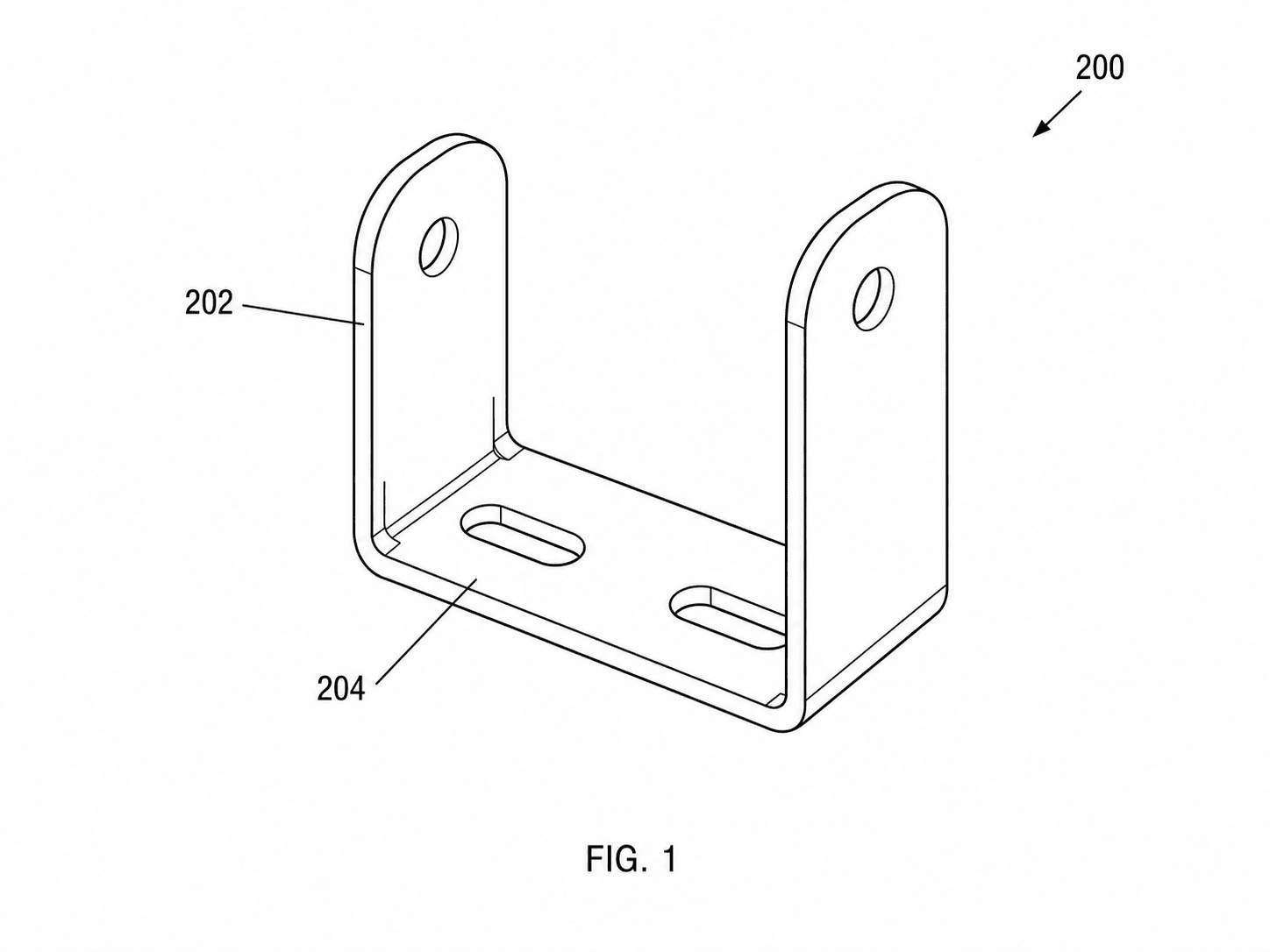 No gray rendering or busy line shading; numerals 200, 202, and 204 sit outside the part on straight lead lines, which suits both CNIPA and the USPTO.
Example 2: Section view — parallel hatching instead of gray fill
Gray CAD section fills cause trouble at both offices; use evenly spaced diagonal hatching instead. In the workspace, enter:
A sectional patent drawing of a ball valve showing the body, ball, seat, and stem, with proper section hatching, section indicators, and reference numerals, white background.
The resulting draft (10 credits):
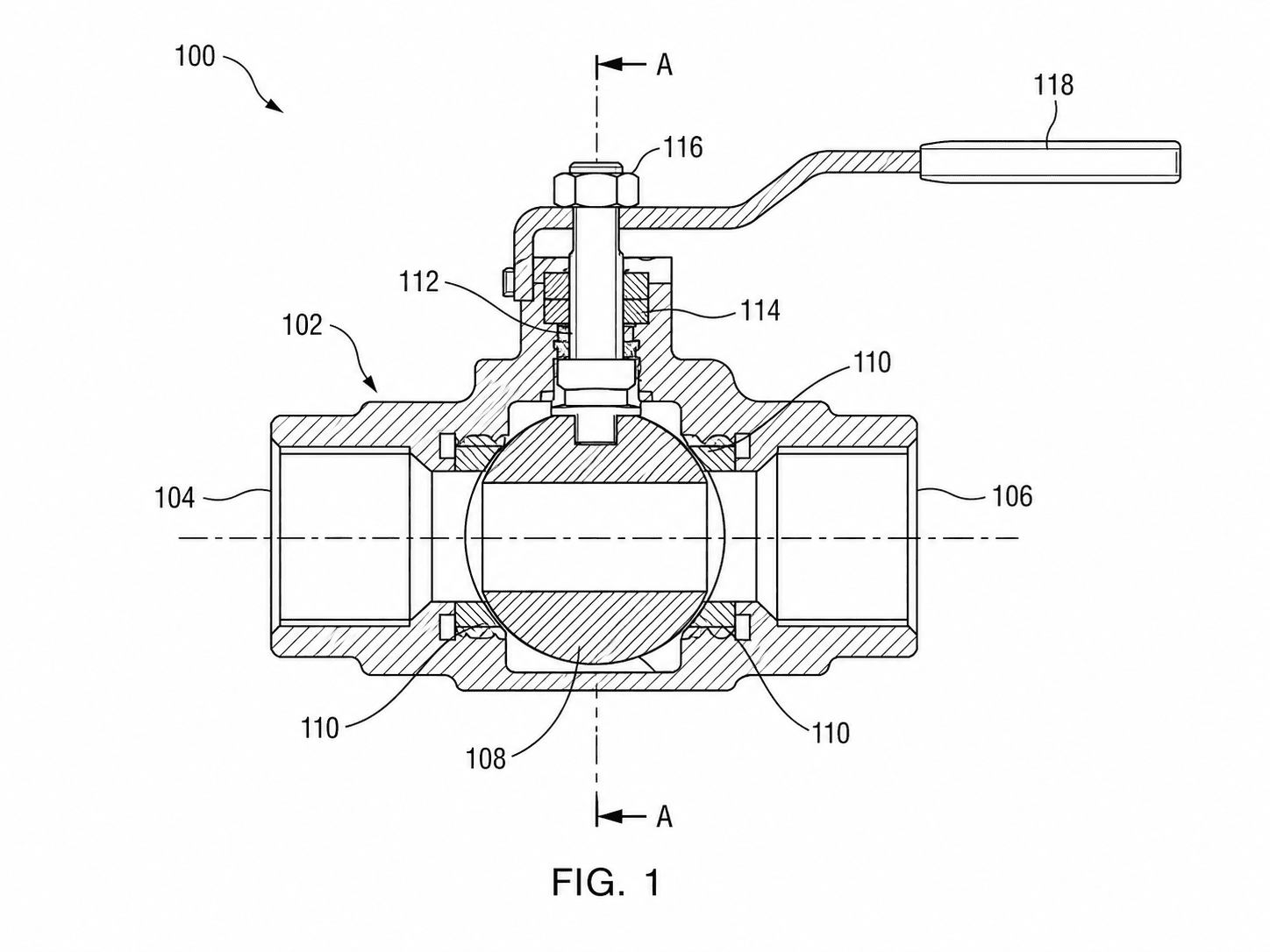 Clean diagonal hatching replaces gray fill, with section indicators and external numerals retained — a solid base for a two-office section view.
Step 3: Convert to SVG, verify numerals, check both offices, and export
- Convert to vector and review by hand. Use "convert to vector" or the vectorize tool (20 credits) to get
.svg/.dxf, then in Inkscape or AutoCAD check against the specification that every numeral appears in both the text and the figures, with no duplicates, gaps, or crossing lead lines. Redrawing a figure costs 10 credits. - Run the checker for both offices. Upload the image to the patent figure checker (20 credits) and screen it under USPTO and then CNIPA for resolution, grayscale, margins, and text height (see how to check patent drawing compliance before filing; EPO / JPO / KIPO results are reference only).
- Export per office. Export a black-and-white filing package from the workspace — full-page PDF or TIFF with
FIG. 1for the USPTO, and A4 full-page PDF or per-figure TIFF with图1and a 1.5 cm bottom margin for CNIPA — and hand both to your attorney or agent for review.
Five Mistakes That Most Often Trigger Objections in US–China Filings
- Scaling Letter to A4, or forgetting CNIPA's 1.5 cm bottom margin. A 1.0 cm US bottom margin is too small for CNIPA, and forced scaling shrinks numerals below 0.32 cm.
- Sending US-style surface shading or anti-aliased CAD gray lines to CNIPA. Stippling or gray edges that pass in the US can be flagged in China as obscuring features or as fuzzy lines.
- Filing raw CAD shop drawings or decorative frames. Leftover tolerances, title blocks, or borders around the sight area violate the rules against extraneous text and frames (for example 37 CFR § 1.84(j) and (p)).
- Numerals drifting out of sync after amendment. Changing dependent claims without updating figures leaves numerals in the text but not the drawings (or vice versa); late fixes risk new matter.
- Forgetting to swap
FIG. 1/图1and flowchart language, or mixing utility and design figures. English boxes go to CNIPA, Chinese characters go to the USPTO, or a numbered structural figure is passed off as a design view.
FAQ
Will drawings that passed USPTO formalities be accepted by CNIPA as-is?
They often draw an objection: Letter paper instead of A4, a 1.0 cm bottom margin instead of 1.5 cm, US-style shading or CAD gray tones, and FIG. 1 labels with untranslated flowchart boxes. Re-lay each sheet on an A4 template with a 1.5 cm bottom margin and strip unnecessary shading.
How do I prepare one drawing set that works for the USPTO, CNIPA, and PCT?
Build a vector master on the strictest common ground: A4 (21.0 × 29.7 cm), margins of 2.5 cm top / 2.5 cm left / 1.5 cm right / 1.5 cm bottom, solid black lines on white without decorative surface shading (hatching only on sections), numerals at least 0.32 cm tall, and no words inside structural views. At each national phase, switch to 图1 or FIG. 1 as needed (see the PCT patent drawing requirements guide and the patent drawing requirements quick reference).
What free tools work for adapting US drawings for a Chinese filing?
Free, open-source Inkscape handles line weights, A4 margin guides, and FIG. 1 / 图1 swaps; free, open-source draw.io covers software flowcharts. Pair either with a manual rule-by-rule review before filing. You can also try first drafts with the 20 credits PatentFig AI gives at signup (valid 30 days) plus 10 daily credits (valid 1 day, non-accumulating; one figure costs 10 credits).
Which offices does the PatentFig AI checker cover, and can it replace a patent attorney?
It cannot replace an attorney or agent. The PatentFig AI patent figure checker (20 credits per run as a standalone tool) fully supports USPTO and CNIPA formal rules, but treats EPO, JPO, and KIPO results as reference only. It checks objective format items (resolution, grayscale/color, margins, text height); numeral consistency with the specification and claims still needs human review, and the platform does not provide legal advice. PatentFig AI commits to not training models on customer uploads or generated results; for inventions subject to export or confidentiality review, follow your organization's security policy.
Auteur

Catégories
Plus d'articles
What Software Is Used for Patent Drawings? AutoCAD, SolidWorks, Visio, Inkscape & AI Tools Compared (2026)
Compare AutoCAD, SolidWorks, Microsoft Visio, draw.io, Inkscape, Adobe Illustrator, outsourced patent illustrators, and PatentFig AI across pricing models, export formats, USPTO 37 CFR 1.84 compliance, and honest trade-offs.
How to Convert a Product Photo to Patent Line Art: Photoshop, Illustrator, Inkscape Tracing & AI Tools Compared (2026)
Compare Photoshop filters, Adobe Illustrator Image Trace, Inkscape Trace Bitmap, CAD photo tracing, outsourced patent illustrators, general AI image tools, and PatentFig AI for turning prototype photos into USPTO 37 CFR 1.84 black-and-white patent line art.
À quoi ressemble un brevet ? Le format du brevet américain, page par page
L'anatomie d'un brevet américain : page de titre, mémoire descriptif, revendications, abrégé et planches de dessins — avec un exemple fictif annoté montrant le format exact qu'attend l'USPTO.
Newsletter
Rejoignez la communauté
Abonnez-vous à notre newsletter pour recevoir les dernières actualités et mises à jour.