How to Check and Convert Patent Figures Before Filing (SVG, TIFF, PDF)
Catch DPI, color, and format issues before filing. Free patent figure compliance checker plus SVG/TIFF/PDF/PNG converter for filing-ready exports. 2026 guide.
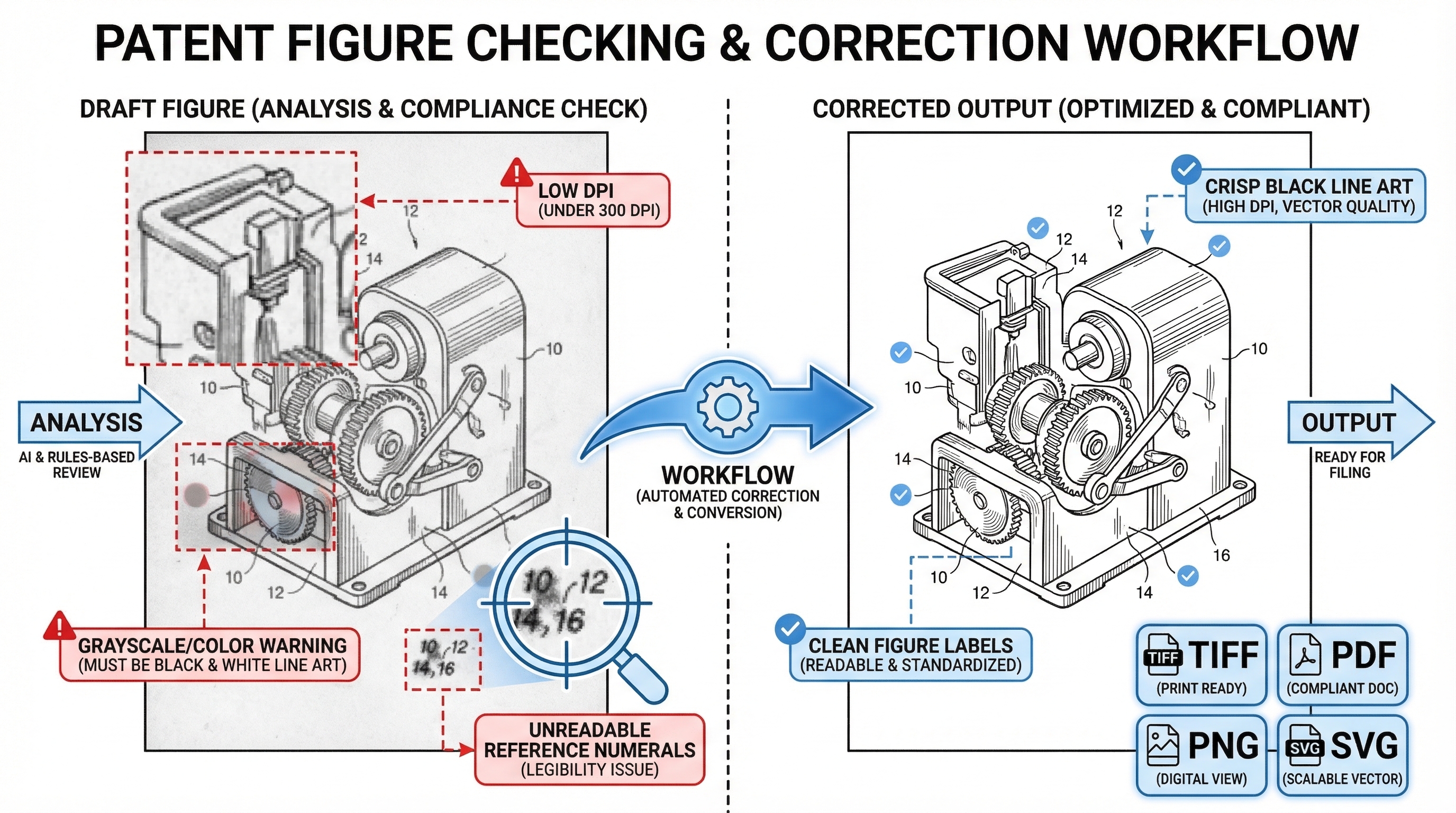
TL;DR: Run every draft figure through the Figure Checker to catch resolution, color-mode, margin, and numeral-legibility issues, then use Convert to export filing-ready SVG, TIFF, PDF, or PNG. Check first, convert second — fixing problems before format export means you only export once.
Patent Figure Checker and Converter: How to Check Patent Drawing Compliance and Export SVG, TIFF, PDF, or PNG
Patent drawings usually fail for boring reasons: the resolution is too low, the file format is wrong, grayscale slipped into a utility figure, or the reference numerals are hard to read. Those are exactly the kinds of issues that slow down filing prep and create avoidable cleanup work for paralegals, patent illustrators, and product teams.
PatentFig AI solves that gap with two focused tools:
- Patent Figure Checker reviews a single figure for compliance-related issues.
- Patent Image Convert converts a single patent image into SVG, PNG, TIFF, or PDF with patent-ready export presets.
Need compliant patent figures faster? Try PatentFig AI in the generator.
Start with the right tool
- Need to review a draft figure for DPI, color, text, or labeling problems? Open Patent Figure Checker.
- Need to export a cleaner deliverable in
SVG,PNG,TIFF, orPDF? Open Patent Image Convert. - Need to create new patent visuals before checking and converting them? Open the PatentFig AI generator.
Why use a patent figure checker and converter together
If you only convert a file, you can still export a technically cleaner image that contains the wrong content. If you only check a file, you can still end up with a final deliverable in the wrong format or at the wrong output resolution.
Using both tools together gives you a more practical workflow:
- Check the figure for DPI, color, text, and content issues.
- Fix or re-export what needs attention.
- Convert the approved image into the format you need for filing, review, or handoff.
That is the simplest way to reduce surprises right before submission.
What the Patent Figure Checker does
The Patent Figure Checker is built for a fast upload-and-review flow. You sign in, upload one raster image, choose whether the figure belongs to a utility or design patent, and run the check.
The current checker flow supports:
- Single-image upload only
PNG,JPEG,TIFF, andWebP- Files up to
10 MB - Patent type selection for
utilityordesign - A structured result view with pass, warning, or fail states
The report is useful because it does more than show a generic error message. It breaks the review into concrete signals:
- Effective DPI and image dimensions
- Detected format and transparency or alpha issues
- Black-and-white, grayscale, or color detection
- Figure number and reference numeral detection
- AI-assisted review for photo-like content, shading problems, line-style issues, and labeling risks
If the checker sees a problem that is best fixed through re-export, it can point you to the Convert page for the next step.
How to use the Patent Figure Checker
If your goal is to catch common patent drawing problems before filing, this is the practical sequence:
- Open Patent Figure Checker and sign in.
- Upload one figure in
PNG,JPEG,TIFF, orWebPformat. - Choose
UtilityorDesign, depending on the figure set you are preparing. - Click
Check Figure. - Review the summary cards for resolution, format, color mode, and text or line signals.
- Read the issue list and recommended actions.
- If the result flags low DPI or export-format problems, continue in Patent Image Convert.
A useful detail: TIFF preview is not shown in the browser UI, but the checker still analyzes the file.
What the Patent Image Convert tool does
The Patent Image Convert page is the output and cleanup side of the workflow. It accepts a single raster image and converts it into the format you actually need to deliver.
Current output options are:
SVGPNGTIFFPDF
For raster outputs, the tool exposes two export presets:
2K, mapped to300 DPI4K, mapped to600 DPI
That matters for patent work because many teams need a cleaner raster export than the original draft provides. PatentFig AI can upscale a low-resolution source before producing the final PNG, TIFF, or PDF output. For SVG, the tool uses whole-image vectorization rather than editable OCR reconstruction.
In other words, Convert is not just a file extension switcher. It is a patent image converter designed to produce sharper filing assets from rougher source material.
How to use Patent Image Convert
The Convert page is straightforward once you know what it accepts and what it outputs:
- Open Patent Image Convert and sign in.
- Upload one
PNG,JPEG,TIFF, orWebPimage up to10 MB. - Choose the output format:
PNG,PDF,TIFF, orSVG. - If you selected
PNG,PDF, orTIFF, choose either the2K (300 DPI)or4K (600 DPI)preset. - Click
Convert. - Preview the result in the browser.
- Download the converted file.
Two practical notes are worth remembering:
- The current page is single-image convert only.
SVGis an output format here, not an upload format.
Best workflow for filing prep
If you are deciding which tool to use first, this order usually works best:
- Start with Patent Figure Checker when you want to know whether a draft image has compliance risks.
- Move to Patent Image Convert when the file needs a cleaner export format or a higher-resolution output.
- Re-check the updated figure if you made meaningful changes to the visual output.
This workflow is especially useful for:
- Patent paralegals preparing final filing packages
- Patent illustrators cleaning up client-provided figures
- Product and engineering teams turning internal visuals into filing-ready assets
What to watch out for
To use these tools effectively, it helps to know their boundaries:
- The checker works on raster image uploads, not PDF or SVG uploads in v1.
- The convert page also starts from raster image uploads.
- The convert page handles one image at a time.
- The checker is strongest at catching resolution, color, text, and visual-compliance signals before you submit.
Those constraints are not a drawback if you use the tools for what they are meant to do: validate the image you have, then produce the output you need.
Final takeaway
When you need both a patent figure checker and a patent image converter, the useful question is not which tool is better. The useful question is where each one fits in your filing workflow.
Use Patent Figure Checker to identify problems early. Use Patent Image Convert to create sharper, cleaner export files in SVG, PNG, TIFF, or PDF. Together, they give you a faster path from draft figure to filing-ready deliverable.
Create Patent Figures Faster
Ready to turn rough sketches, CAD screenshots, or prompts into patent-ready visuals? Open the PatentFig AI generator.
Next step: Open the generator and create your first figure — no credit card required.
Author

Categories
More Posts
Inside PatentFig AI: How IP Teams Generate, Check, and Export Patent Figures
End-to-end AI workspace for patent figures: generate, refine, check, convert, and export. How PatentFig AI cuts figure prep time by 80% for IP teams. 2026.
Chat-to-Modify Patent Figures: Surgical Edits Without Full Regeneration
Refine patent figures with natural language commands. Move, adjust, and edit specific elements without regenerating entire drawing sets. PatentFig AI guide.
How PatentFig AI Protects Pre-Filing Patent Materials
A practical guide to how PatentFig AI handles confidential pre-filing patent materials, including no-training commitments, subprocessors, retention, and business review terms.
Newsletter
Join the community
Subscribe to our newsletter for the latest news and updates